The launcher is the program your customers see. It runs full screen on each simulator PC, hides Windows completely, and is driven with the wheel, paddles and a button box. No keyboard, no mouse. It talks to your admin panel constantly, so a session started at the desk appears on the rig within a second, and a lap driven on the rig is on the leaderboard before the car has stopped.
What is on a rig
| Piece | What it does |
|---|---|
| Multitap Launcher | The full-screen client described in this chapter. The rig setup program installs it already connected to your venue, and after that it updates itself. |
| MultitapLaps (in-game app) | Runs inside Assetto Corsa. Records every lap with sectors, cuts, tyre and top speed and sends it to your venue. Shows a countdown on screen in the last two minutes of a session. Also lets staff change ABS, TC, mirror and ideal line mid-session from the admin panel. Needs Custom Shaders Patch. |
| Traffic Score (in-game app) | The scoring HUD for traffic sessions. Dormant in every other mode. Needs Custom Shaders Patch. |
| Multitap Collector | A small tray program, installed on every rig by default. It reads ACC and iRacing laps as they complete, and it also carries the Assetto Corsa lap app's laps to your venue. It stores each lap before sending it, so laps driven while the internet is down are sent when it comes back. |
| Content Sync worker | Copies cars and tracks from one master rig to the others over your venue network when you run a sync from the Content Sync page. It does nothing the rest of the time. |
| AutoCam (in-game app) | Broadcast PC only. An automatic TV director that follows battles, incidents and overtakes. |
The screens
Attract
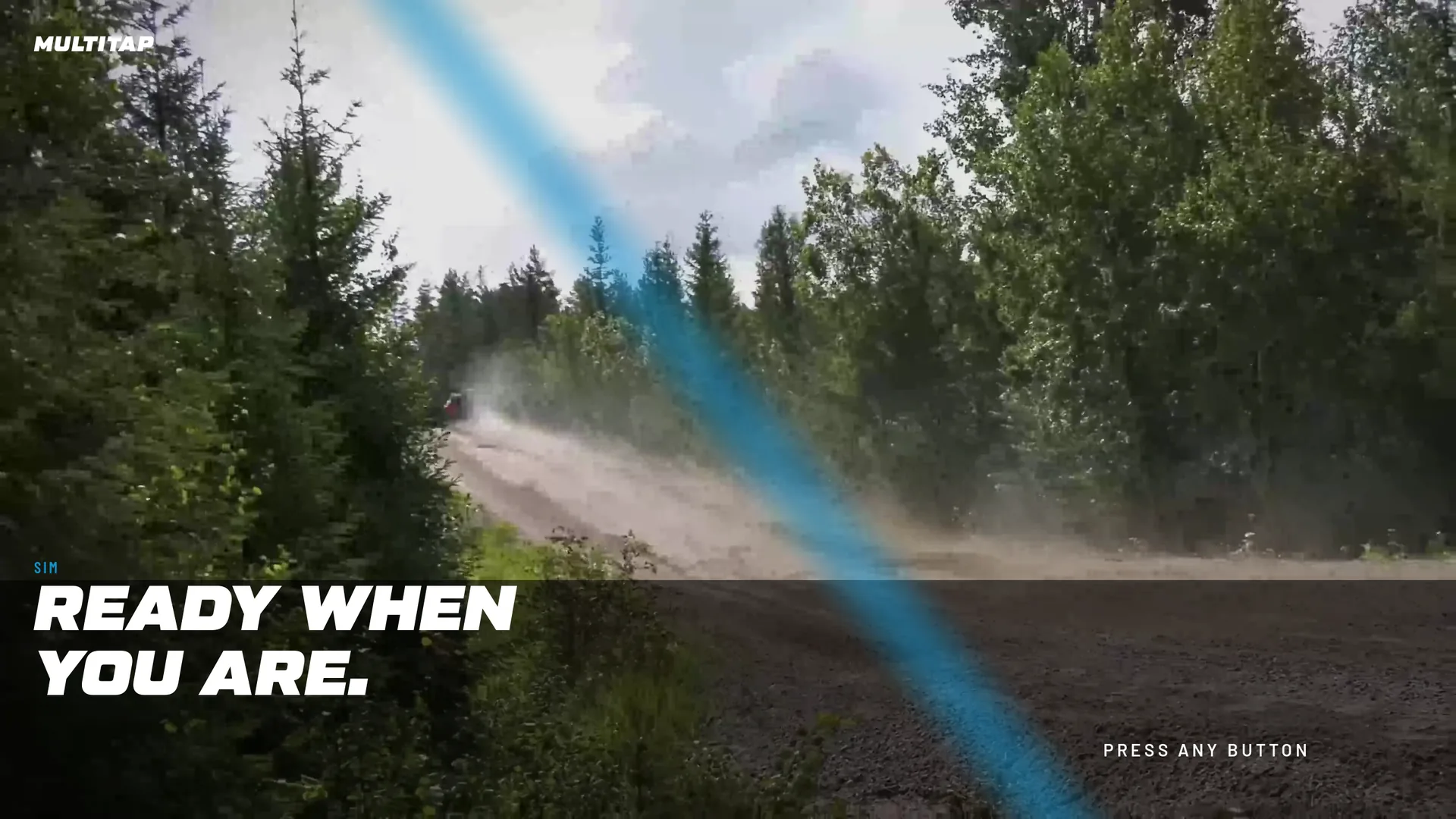
When nothing is happening the rig plays a rotation of driving clips at full brightness with the venue name, the rig's number and two lines of text: READY WHEN YOU ARE. and a pulsing PRESS ANY BUTTON. Any button, pedal press or wheel movement wakes it.
Standing by
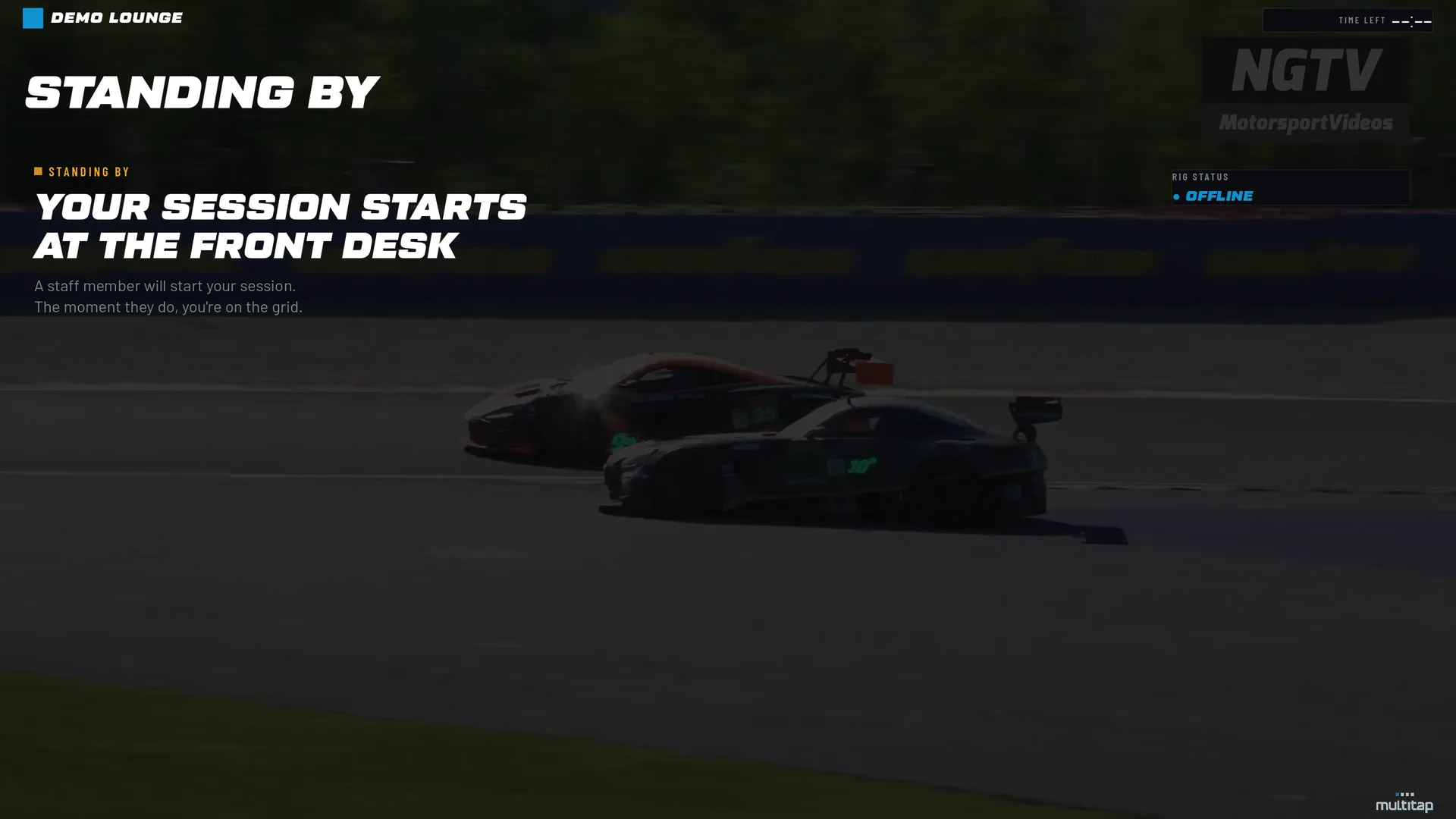
Once awake the rig shows STANDING BY with a pulsing beacon and the message Your session starts at the front desk. A staff member will start your session. The moment they do, you're on the grid. A RIG STATUS card reads CONNECTED when the rig can reach your venue and OFFLINE when it cannot.
Staff have a shortcut here: pressing the 8 key on the rig's keyboard shows ACCESS GRANTED and starts an unlimited session without the admin panel. Useful for testing, or a free go for a friend.
If the venue has configured ACC or iRacing, a CHOOSE YOUR SIM screen comes first with a card per game. Assetto Corsa continues into the wizard below; the other two start their game directly.
The wizard
A chevron rail across the top shows the four steps: 01 EVENT, 02 CAR, 03 TRACK, 04 MODE. A TIME LEFT counter sits in the corner, turning the venue's accent colour in the last five minutes, or reading NO LIMIT for an unlimited session. The footer reminds the driver: ◀ ▶ NAVIGATE ⏎ SELECT ⟵ BACK, with the Multitap logo at its right-hand end.
- Choose your event.
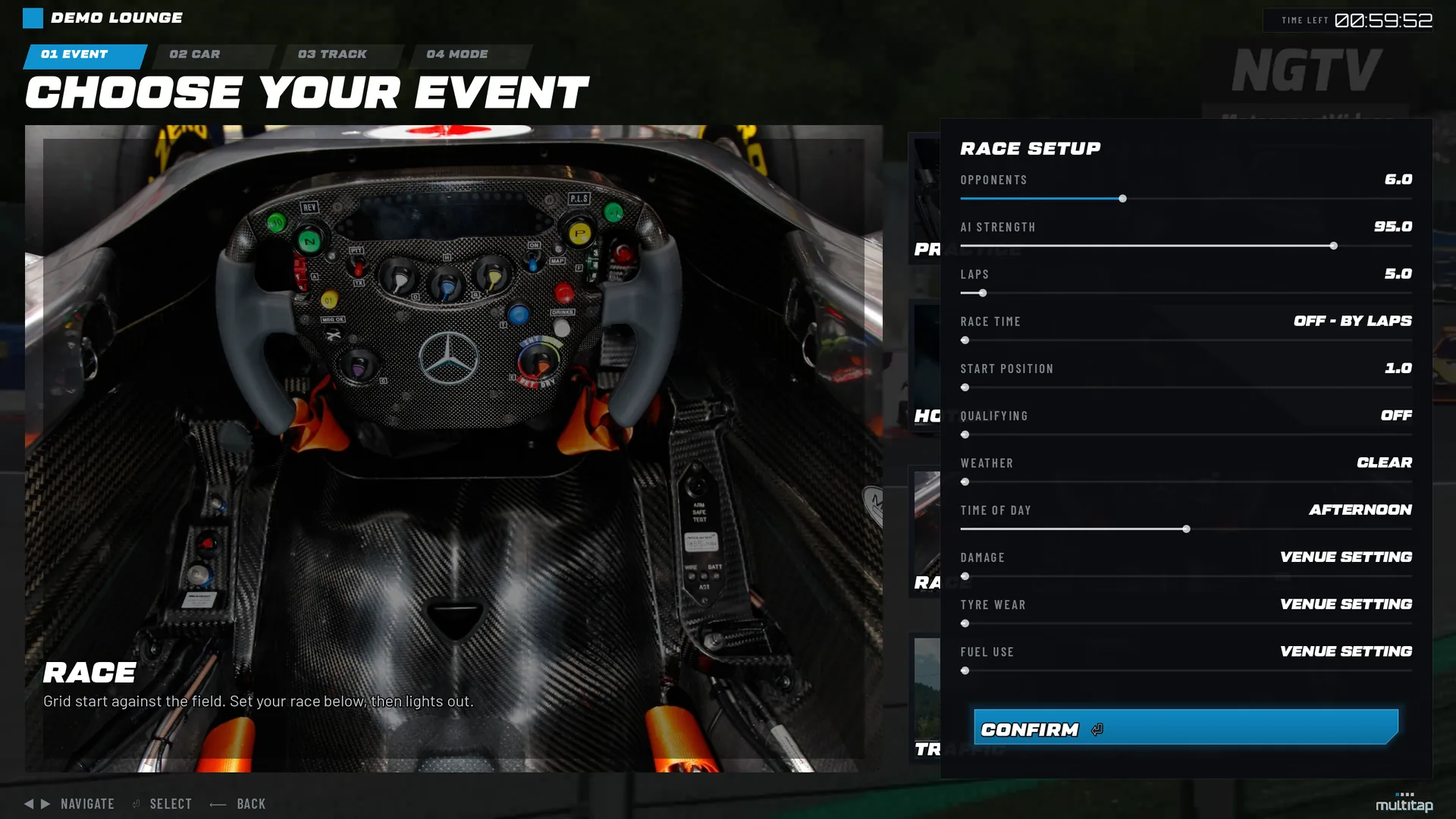
Four rows with a photograph each. PRACTICE (open lapping) and HOTLAP (one flying lap at a time, with the leaderboard watching) confirm at once. RACE opens a setup drawer with sliders for opponents (1 to 15), AI strength (70 to 100), laps (1 to 99) and start position. TRAFFIC opens a drawer for traffic density (0.5x to 2x) and AI speed (40 to 120 km/h). Left and right adjust a slider; select moves to the next; a CONFIRM card finishes. When the venue has customer group sessions on, a fifth row, GROUP SESSION, appears below them; see Hosting and joining a group session.
Race setup drawer01 Event - Choose your car.
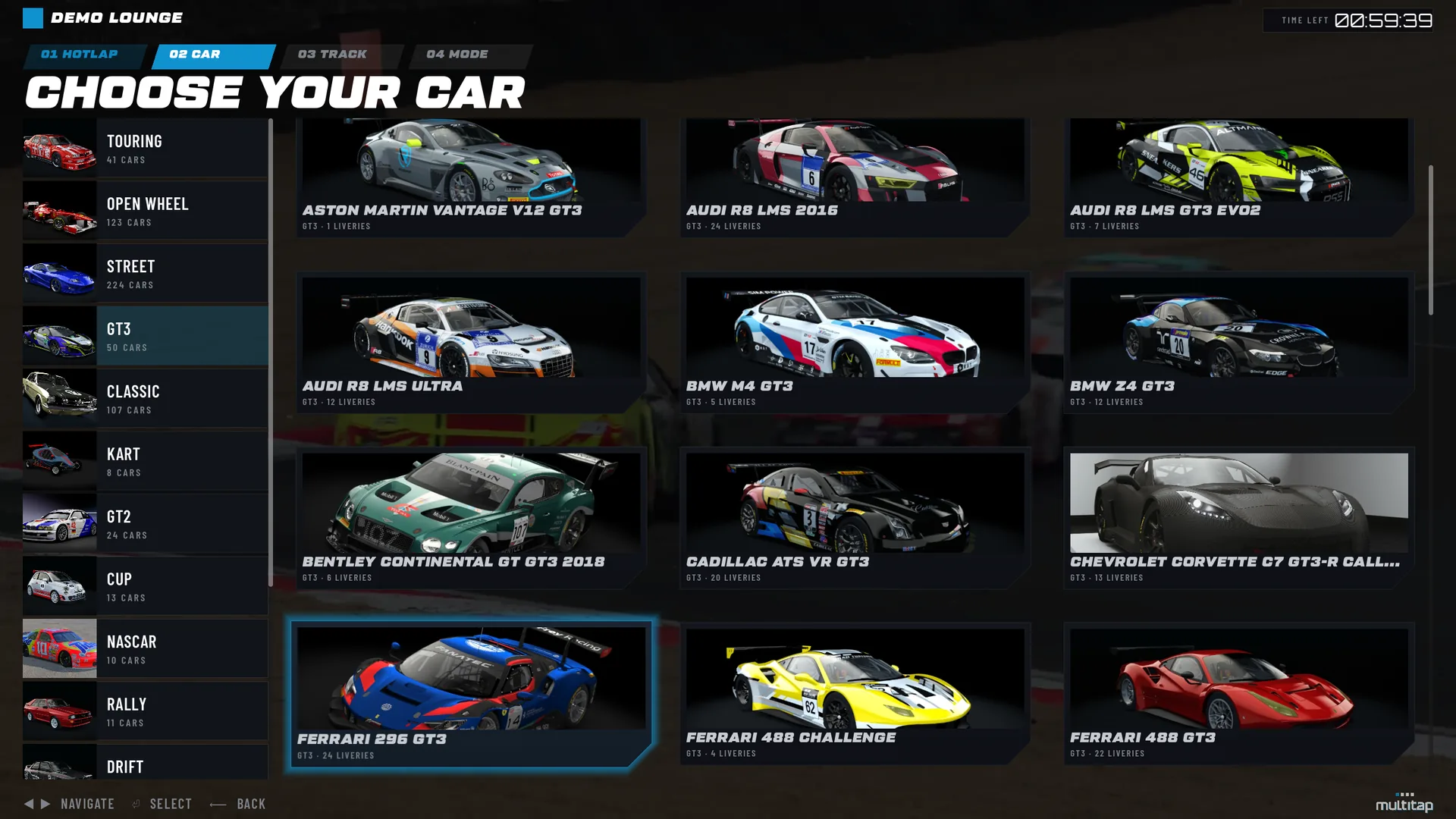
A tower of classes on the left with car counts, and a grid of cars with photographs on the right. Cars with liveries open a livery grid. Back walks from livery to car to class to the event step.
Class tower and car grid02 Car 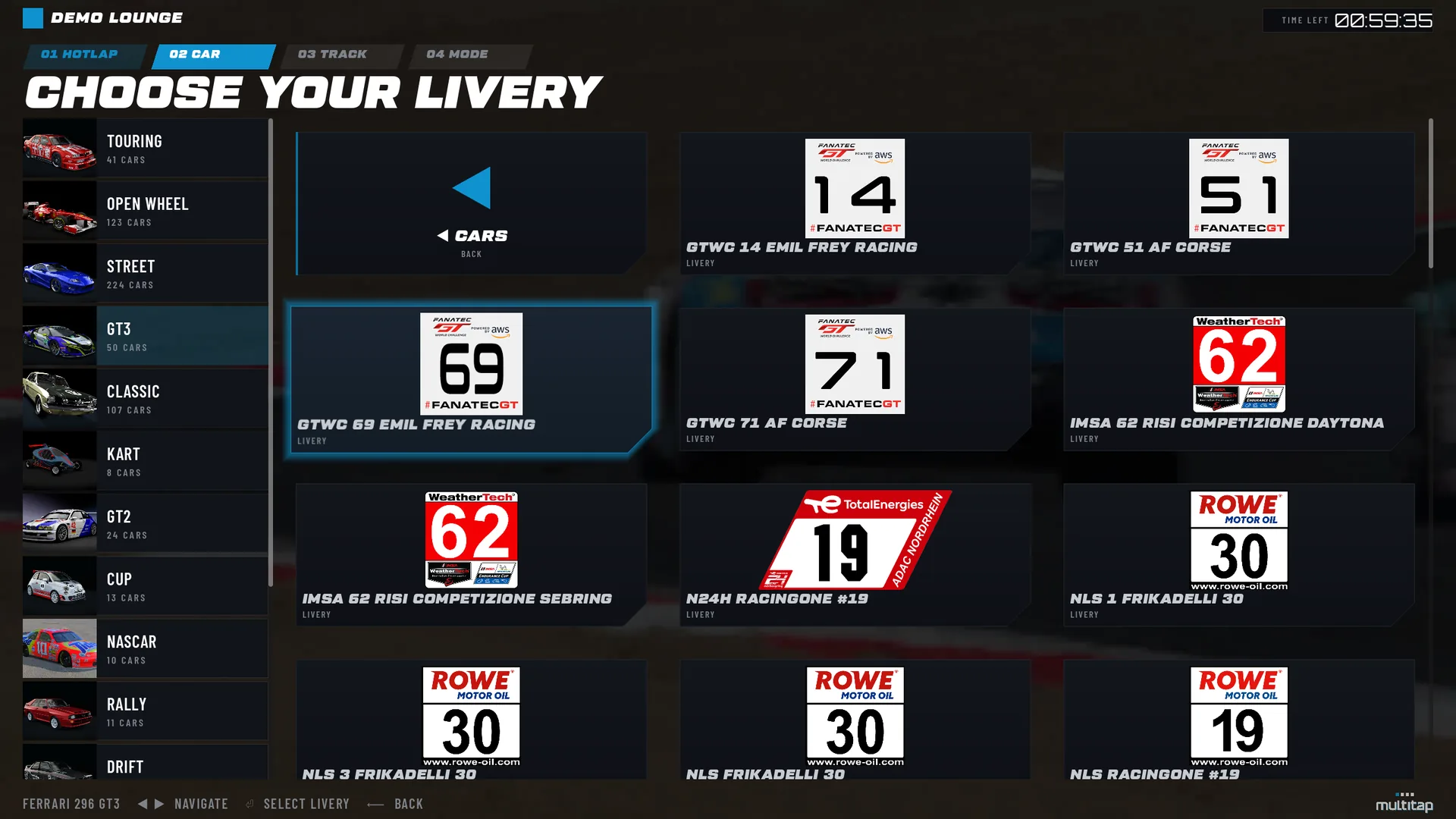
Livery grid02 Car - Choose your track.
A tower of regions, then a grid of tracks. Tracks with several layouts open a layout grid. In traffic mode the list shows only tracks with AI lanes.
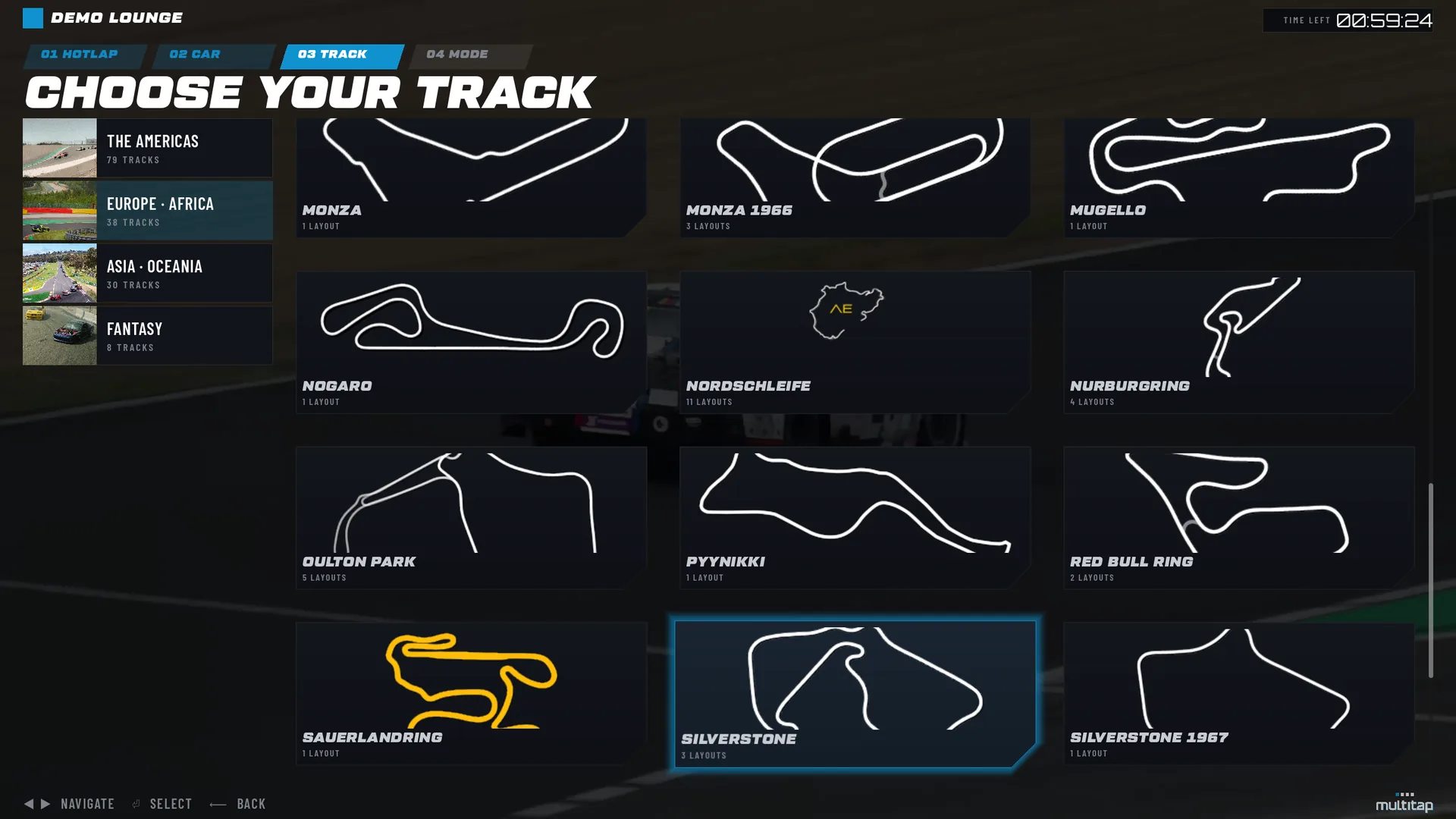
Region tower and track grid03 Track 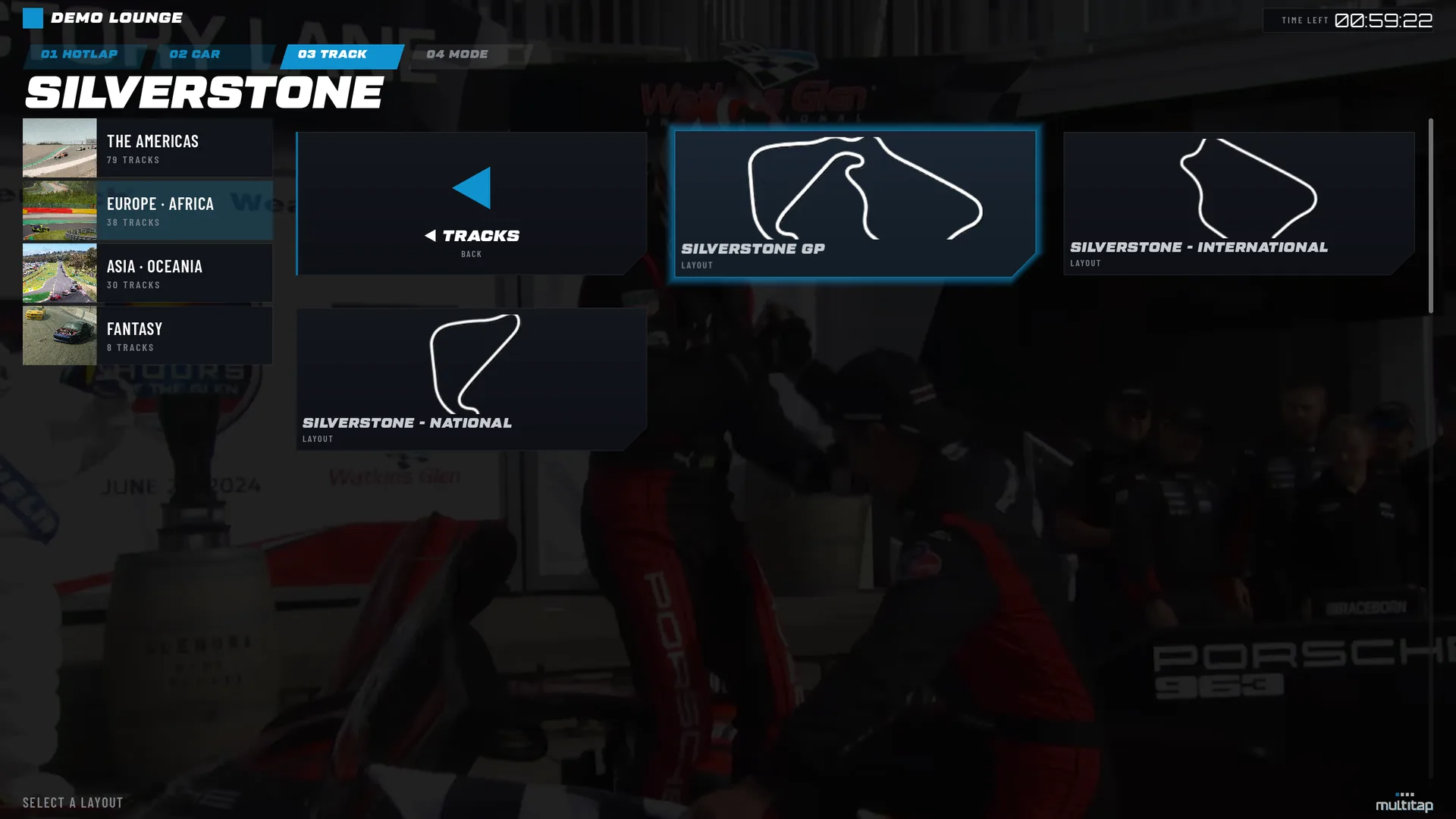
Layouts of one track03 Track - Choose your mode.
Two large cards. SIMULATION: every assist off, real braking points, real consequences. ASSISTED: stability, ABS and braking help on, all of the speed and none of the spins. What each actually sets is the venue's Standard and Pro configuration from Settings.
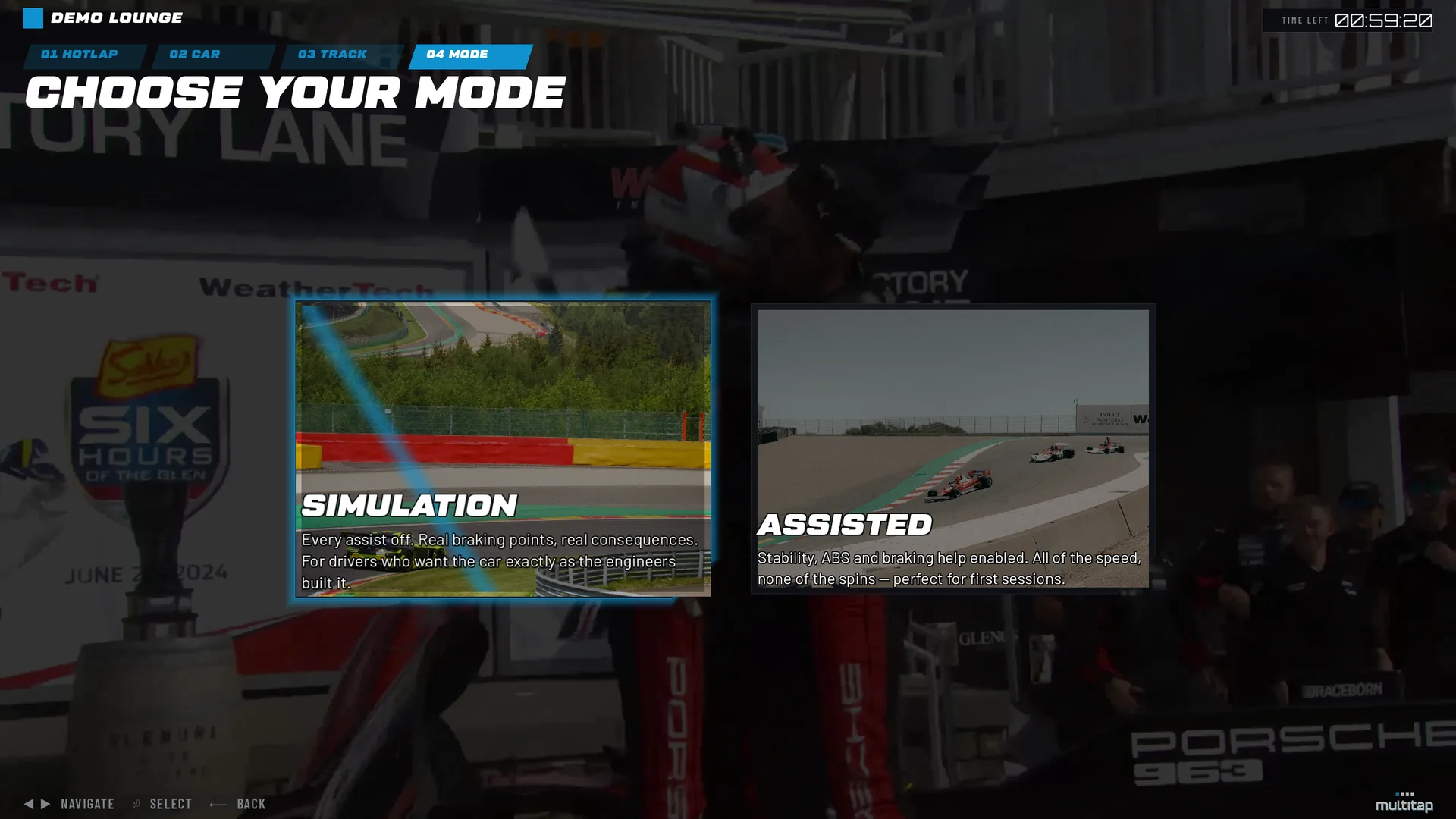
Simulation or assisted04 Mode
The grid
The last screen is titled YOUR GRID SLOT IS READY. Four cards summarise the choices, each with a CHANGE hint; select one to revisit that single step and come straight back. A DRIVER card holds the driver's name, which staff can also set from the desk. To change it at the rig, move right past the launch control to the card and select it: an on-screen keyboard opens for the new name. Below sits the launch control: five lights and the words HOLD TO START. The driver holds select; a light comes on every fifth of a second; when all five are lit and they let go, the screen reads LIGHTS OUT and Assetto Corsa starts. Letting go early cancels. The control stays dim until event, car and track are all chosen.
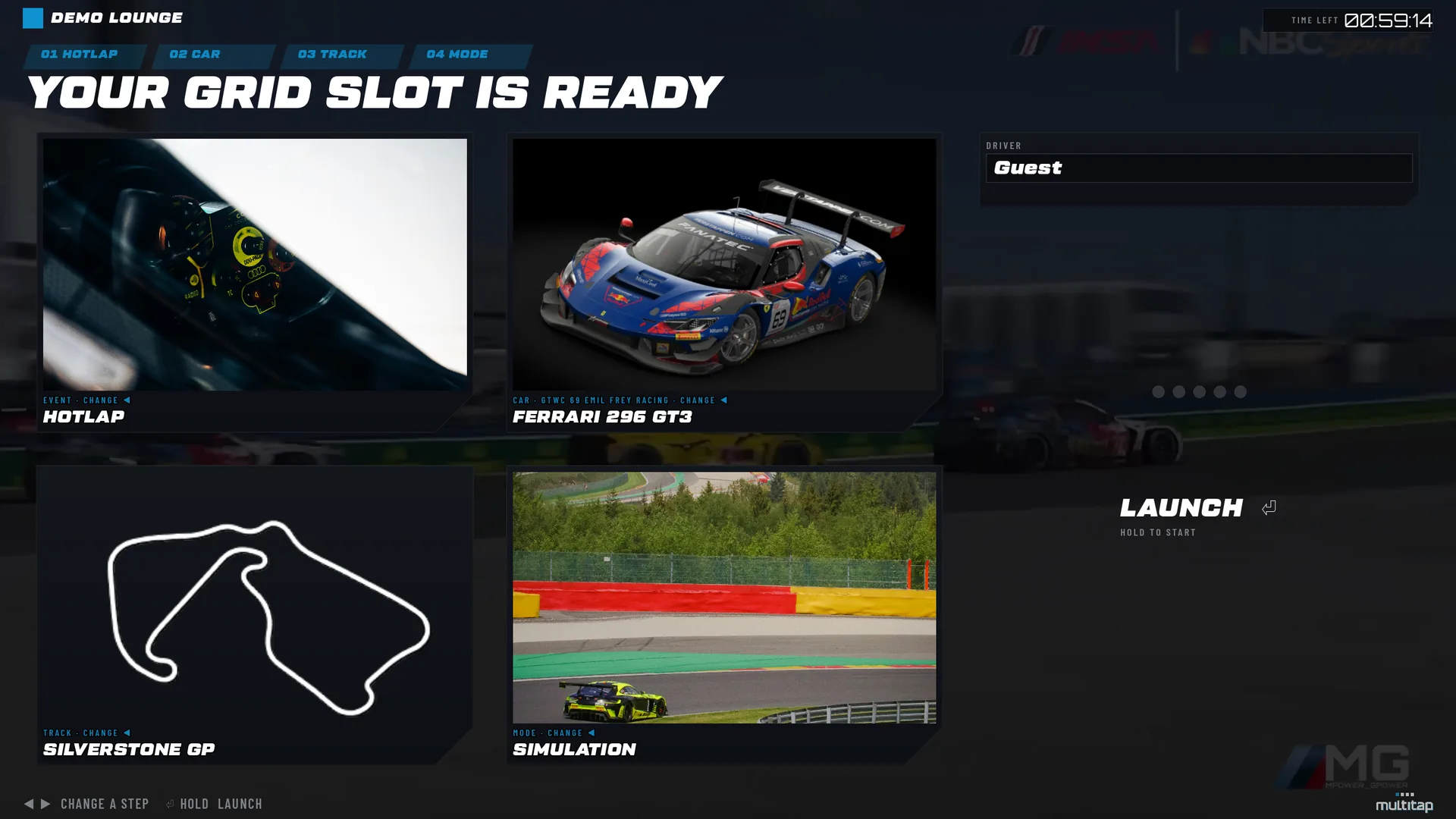
Before launching, the rig checks that the car and track are installed. If not, a sticky message reads MISSING CONTENT — SEE STAFF and the failure is reported to the Dashboard. If the game fails to appear within 25 seconds, the message is LAUNCH DID NOT START — SEE STAFF and the driver can try again.
During and after the game
While the game runs the launcher hides completely. The session timer keeps counting, and the in-game app shows SESSION ENDS IN on screen for the final two minutes. When the driver quits the game, or when staff press End Game, the launcher comes straight back to the grid screen with their choices intact, ready to go again. There is no results screen in between; the laps are already on your leaderboards. When the time runs out, or staff press End Session, the game closes and the rig returns to Standing by.
Group races
When staff launch a group race with Driver Chooses, the rig jumps straight to the car step with a GROUP SESSION badge. The driver picks a car and livery, and the screen locks with WAITING FOR OTHER DRIVERS… until everyone has chosen. Then the server starts the race and the game launches on every rig at once. Group and traffic launches sent from the desk with a car already chosen skip the wizard entirely.
Hosting and joining a group session
With customer group sessions turned on and launcher 1.5.0 on the rig, the event screen has a fifth row, GROUP SESSION: Race your friends on the rigs around you. Only rigs with a customer logged in by staff can host or join, and the host can pick only the modes the venue allows. Everything is done with the wheel. Selecting it offers two cards.
- HOST A SESSION: Pick the event, the track and the setup. Friends join you. The host picks RACE, PRACTICE or TRAFFIC; the setup (laps or minutes, plus practice minutes before a race; minutes for practice; the usual traffic choices for traffic); SIMULATION or ASSISTED, which applies to everyone in the session; a track; and then their own car.
- JOIN A SESSION: Join a friend's session on another rig. The list shows each open session's host, mode, track and seats, and updates by itself. A full session can't be joined. With none open it reads NO GROUP SESSIONS RIGHT NOW. HOST ONE OR ASK A FRIEND TO. The driver picks a session, then a car.
Everyone then waits on the lobby screen. It shows the mode, track and setup, and a row per driver with their car (or PICKING CAR) and their paid time left, in the warning colour when it is shorter than the session. The host has START, CHANGE CAR and CLOSE SESSION; everyone else has CHANGE CAR and LEAVE. START lights up once at least two drivers have picked a car, and runs the same group launch staff use. A driver who hasn't picked when START is pressed is left out.
A session closes for everyone when the host closes it or leaves (THE HOST CLOSED THE GROUP SESSION), when nobody starts it within 10 minutes (GROUP SESSION TIMED OUT), or when staff cancel it (GROUP SESSION CANCELLED. SEE STAFF). Each rig goes back to its own session screen with its time intact.
After a race or practice, the rigs land on the usual waiting screen and the host also gets RACE AGAIN for 10 minutes. It reopens the lobby with the same setup and brings back everyone still on WAITING FOR GROUP; anyone who chose BEGIN SOLO SESSION stays solo. Traffic has no RACE AGAIN: a customer traffic session runs until staff stop it or a driver's time runs out, just like one started from the desk.
While content is copied
When a content sync reaches a rig, the launcher covers the screen with UPDATING CONTENT, a percentage and a progress bar. Below them are the current step, the item being copied and how much is done, for example 4.2 of 18.4 GB, and the line THIS SIM WILL BE READY SOON. The master rig shows SHARING CONTENT WITH THE OTHER SIMS while the others copy from it. Customers can't dismiss this screen, and every launch is refused until the sync ends. A sync waits until the rig is free, so it never starts in the middle of a session. Starting and stopping syncs is covered in the Content Sync chapter.
The hidden menu
Press Shift + F4 on the rig's keyboard from any screen to open ADMIN SETTINGS. The rig setup program fills in the connection details for you; this menu is where you map the wheel, turn on motion, check the rig's version and change anything later.
| Setting | What it does |
|---|---|
| Version line | The top line reads Launcher v1.2.0 or whichever version the rig runs. After the rig has updated itself, a second line gives the result: Last update: with the version, OK or FAILED, and the time. |
| Server Address | Your venue's address, for example yourvenue.mlttp.com. Filled in automatically from the Venue ID when SSL is on. |
| Venue ID and API Key | Your venue's identity and the key issued when the venue was created. Without these the rig stays OFFLINE. The key is masked and cannot be copied out of the menu; to change it, type or paste the new one over it. |
| Use SSL (HTTPS) | On for any hosted venue. |
| Primary Color | The accent colour; normally set from the admin panel and applied automatically. |
| Enable Game Close Button | Arms the END GAME binding so a mapped button can close the game. |
| Enable D-BOX Motion (this rig) | Marks this rig as a motion rig, so each Assetto Corsa launch starts the D-BOX helper first. The line under it shows whether motion will work: Motion: ready (D-BOX helper found, CM-compatible mode on), Motion: off on this rig, or what is wrong and how to fix it. See D-BOX motion. |
| Wheel Sensitivity | How far a wheel or pedal bound to a navigation action must move before it counts. |
| Save | Writes the settings and reconnects. |
| Configure Controls | Maps every action to a button, axis or key: Accept, START RACE, END GAME, Cancel, Left, Right, Up, Down, Page Up and Page Down. Press Set next to an action and then the button on the wheel. Left, Right and START RACE have a second slot so the wheel itself or a pedal can drive navigation. Save and Close stores the map. |
| Stop content sync | Stops a content sync on this rig and tells the admin panel it was stopped here. |
| Allow content sync | Opens Windows Firewall so your other rigs can reach this PC for content sync, on port 6890 and on your venue network only. Windows asks once for permission; choose Yes. The result shows in the line below: Content sync is allowed on this PC, or that it was already allowed, or that Windows didn't allow it, in which case try again and choose Yes. You only need this on a rig where the setup's Content Sync tick was off or the Windows prompt was declined. |
| Content sync line | No content sync running, Content sync running with what it is doing, or Content sync waits until this sim is free. |
Once controls have been saved the keyboard is locked down: only the mapped actions work, plus the staff keys above. Until a venue saves a map, sensible defaults apply (arrows, Enter and Escape, and the usual gamepad buttons).
D-BOX motion
On a motion rig the launcher does what Content Manager does: it starts the D-BOX helper, waits the D-BOX Wait set under Settings › AC Client Path, then starts Assetto Corsa. Set each motion rig up once:
- Install D-BOX's software.
Install HaptiSync Center, switch it to D-BOX Coded Gaming mode, and install the Assetto Corsa haptic code from it.
- Switch D-BOX to CM-compatible mode.
Open Content Manager on the rig as administrator and go to Settings › Integrated. Tick D-BOX integration, then click Switch D-BOX to CM-Compatible Mode and answer Yes to every prompt.
- Turn motion on in the launcher.
Press Shift + F4 and tick Enable D-BOX Motion (this rig). The line under it should read Motion: ready (D-BOX helper found, CM-compatible mode on). If it doesn't, it says what is wrong and how to fix it.
Check that line again after a HaptiSync Center update or a reinstall of the haptic code. If motion can't start, the customer still drives: the game launches without motion, and the rig's row on the Launcher page and the Dashboard show a red line starting Motion off:.
| Message says | What to do |
|---|---|
| D-BOX is not in CM-compatible mode on this rig | Repeat step 2 on that rig. |
| The D-BOX helper is not installed at a path | Install the Assetto Corsa haptic code in HaptiSync Center, or correct D-BOX Helper Path in Settings if D-BOX lives somewhere else. |
| The D-BOX helper would not start | Check that the file at that path runs when you open it by hand on the rig. |
| D-BOX started its own copy of Assetto Corsa and it was closed | Repeat step 2, then check the line in the hidden menu. |
If motion starts but does not engage, raise D-BOX Wait to 15, then 20. ACC has D-BOX built in: turn on D-BOX MOTION in ACC's gameplay options and the launcher needs nothing more.
Installing on a rig
Before you start, sign in to Windows as the rig's normal user, install Assetto Corsa through Steam and start it once, install Custom Shaders Patch with Content Manager, and leave Steam signed in. Then download the rig installer from the admin panel: under Settings › Downloads, press Download the rig installer. Download it on the rig or copy it there, and run it. The same file works on every rig at your venue. Keep its file name as it is, MultitapRigSetup_ followed by your server and venue ID, because that is how it knows your venue; if the name was changed, download it again. The window is titled Set up this rig for your venue.
| Field or button | What it does |
|---|---|
| Server | Your venue's address, for example yourvenue.mlttp.com. The installer fills it in from its file name. It is also on Settings › Sim Rig Setup. |
| Venue ID | Filled in from the file name as well, and also on Sim Rig Setup. |
| Rig API key | The key issued when your venue was created. Your venue page in your Multitap account shows it again under Show API key. Tick Show to check what you pasted. |
| Assetto Corsa | The game folder, the one that holds acs.exe. Setup finds it on its own in most cases; Browse... lets you pick it. |
| Also install the ACC / iRacing telemetry collector | Installs the Multitap Collector. On by default; leave it on, because the collector also carries Assetto Corsa laps. |
| Start the launcher (and collector) when Windows starts | Adds both to Windows startup. On by default. |
| Start the launcher when finished | Opens the launcher as soon as setup is done. The collector always starts straight away. |
| Allow Content Sync on this PC | Lets your rigs copy content between them. Windows asks once for permission; answer Yes. If you say No, setup still finishes, and you can allow it later from the launcher's hidden menu with Allow content sync. |
| Collector line | Whether the collector is installed and running. Check collector looks again; Start collector starts it if it is installed but stopped. |
| Test connection | Tries your details against your venue. Connected. means they work. Otherwise it says what went wrong: the venue rejected the Venue ID or key, the address can't be reached, the server's certificate was not accepted, or a firewall blocked the request. |
| Download and install | Tests the connection again and stops if your venue rejects the details, so nothing is downloaded with a wrong key. Then it downloads the rig software from your venue, which takes a few minutes, and installs it. |
Setup installs the launcher, the in-game apps (MultitapLaps and Traffic Score) with your venue details, the Content Sync worker and the collector, and adds a Multitap Launcher shortcut to the desktop. It saves your venue details in the launcher, so the launcher starts already connected and you don't need to type them into the hidden menu. It also reports the Custom Shaders Patch version it found, and warns if CSP is missing or too old for the lap app; update CSP with Content Manager.
Close the launcher and the collector before you run setup again: it refuses to install while either is running, or while a content sync is copying files on that PC.
- Run setup.
Paste the Rig API key, check the rest of the window as above, and press Download and install. When the launcher opens, RIG STATUS should read CONNECTED.
- Check the Assetto Corsa path.
Setup's last message shows the Assetto Corsa folder it used. In the admin panel, AC Root Path (on sim PCs) under Settings › AC Client Path should match it. If you change it, press Save Settings, then Send to connected rigs.
- Map the wheel.
Press Shift + F4, open Configure Controls, bind each action to the wheel's buttons, and save. Drive the wizard once yourself.
- Save and name it at the desk.
The rig appears on the Launcher page as Sim 1, Sim 2 and so on. Under Settings › Saved Sims, give it a name your staff will use and press Save rig, so it keeps that name and slot.
- Check the rig.
On the Launcher page, press Check rig on the rig's row. The rig reports on itself and you get a checklist that reads Ready, Ready with warnings or Not ready, with a fix for anything that failed. It covers the launcher version, the clock, Assetto Corsa and CSP, the lap app, Steam, the wheel, disk space, Content Sync, the collector and motion. See Checking a rig.
Updates
You install a rig once. After that the launcher, the in-game apps and the Content Sync worker update themselves, and you never download update files.
Each rig checks for an update once, about a minute after the launcher starts. It installs it straight away only if nothing has happened since the launcher started: no session and no game. Otherwise it keeps the download and installs it at the next start. It never updates during the day on its own, and never during a content sync. If you want an update sooner, press Check for updates now under Settings, Software updates; each rig then installs it as soon as it is free and showing its idle screen. If a new launcher fails to start, the rig puts the previous one back by itself. The version line at the top of the hidden menu shows what the rig runs and how its last update went.
Broadcast PC
A broadcast PC runs a small companion app rather than the customer launcher. It plays your idle video on the venue TV with your logo in the corner you choose, connects to your venue like a rig, and shows live races. One broadcast PC is included with your venue.
Most of the time it runs itself: it joins the longest-running race that no other broadcast PC is watching, as a spectator car, and stays until that race ends. With no race running it plays the idle video. A public server marked Broadcast when idle in Settings fills the TV when no local race is running. Staff can step in from the Launcher page's Broadcast panel: send a PC to a race or server, join, leave, pause the automatic choice, or restart the video. With AutoCam installed, the spectator view directs itself, switching between battles, incidents and finishes with a mix of track, helicopter, chase and onboard cameras.
- Download the installer.
Under Settings › Downloads, press Download the broadcast installer. Each download is linked to your venue and works once, within 24 hours, so download it on the TV PC or copy it there.
- Run it on the TV PC.
Sign in to Steam on that PC first. Multitap Broadcast Setup reads its link from its own file name and shows Linking this PC to your venue, then Linked to your venue as Broadcast 1 (or the next number).
- Pick the screen.
Under Idle video screen, click the TV on the map of your screens; Identify screens shows which is which. Check the Assetto Corsa folder and AC cfg folder, then press Save. AutoCam needs Custom Shaders Patch, and setup warns if it is missing.
If the download has expired, download it again, or use Enter manually and type your server, Venue ID and API key. If your venue already has as many broadcast PCs as its licence covers, forget one under Settings, Broadcast, or contact Multitap to add one. The broadcast app updates itself the same way rigs do, waiting until no race is on.