Every rig should have the same cars, tracks and apps, or a customer picks a car on one sim that another sim has never heard of. Content Sync fixes that from the browser. You pick one master sim that has everything, choose what to copy, and press one button. The other sims copy what is new straight from the master over your venue network.
Before the first sync
Content Sync uses a small worker that the rig setup installs beside the launcher. At the end of setup, Windows asks once whether to allow Content Sync through the firewall; answer Yes. That opens one port (TCP 6890) to your local network only. If someone answered No, open the launcher's operator menu on that rig with Shift + F4 and choose Allow content sync. See At the rig.
Each sim also needs a recent launcher. The page tells you in amber when a sim's launcher is too old to take part, and rigs update themselves the next time they start.
The Content Sync page
Open Admin panel › Content Sync. The page has three numbered cards.
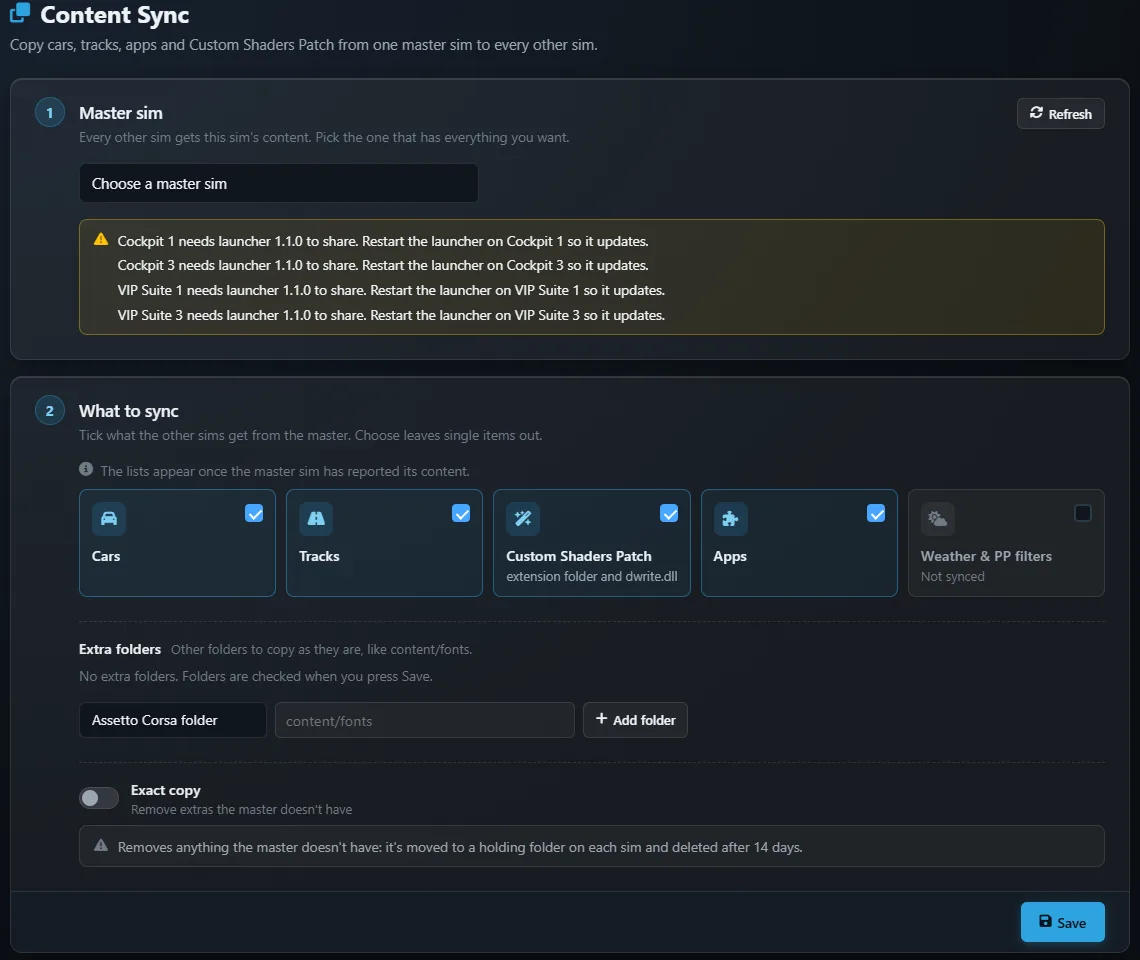
1. Master sim
Pick the sim that has the content you want everywhere. Multitap suggests the one with the most content; press Save to keep your choice. Refresh asks every sim for a fresh list of what it has installed.
If the master cannot share yet, a hint under the list says why and what to do, for example that Content Sync is not yet allowed on that rig, or that its launcher needs updating.
2. What to sync
Tick the kinds of content the other sims should get from the master:
| Tile | What it copies |
|---|---|
| Cars | Every car in the master's Assetto Corsa content folder. |
| Tracks | Every track, with all its layouts. |
| Custom Shaders Patch | The extension folder and its dwrite.dll, so every rig runs the same CSP version. |
| Apps | In-game apps. |
| Weather & PP filters | Weather and post-processing filters. Off by default. |
Once the master has reported its content, each tile has a Choose link that opens the full list, so you can leave single items out, such as a car you are still testing.
Extra folders copies other folders exactly as they are, for example content/fonts. Pick whether the path starts in the Assetto Corsa folder or in Documents\Assetto Corsa, type it, and press Add folder. Folders are checked when you press Save.
Exact copy is off by default, which means a sync only adds and updates. Turn it on and anything the master does not have is removed from the other sims as well. Removed items are not deleted straight away: they move to a holding folder on each sim and are deleted after 14 days, so a mistake can be undone by hand.
An Unsaved changes pill appears until you press Save.
3. Sync your sims
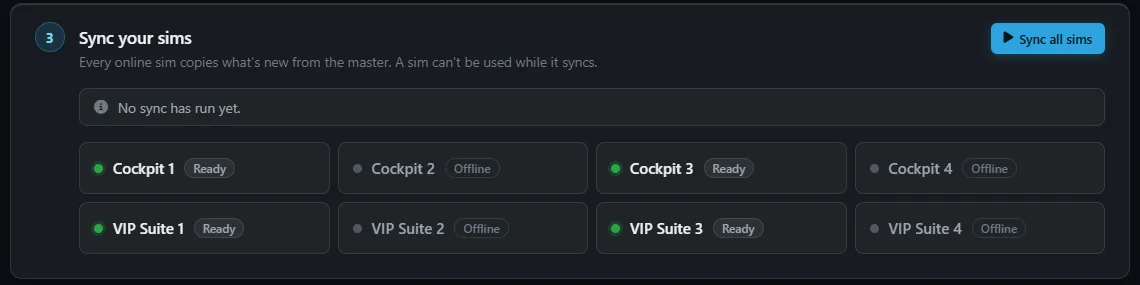
Press Sync all sims. Before anything starts, a confirmation spells out what will happen to each sim:
- Idle sims start now and cannot be used until they finish.
- Sims in a session start when that session ends. Nobody's drive is cut short.
- Offline sims are skipped.
- The master stays busy sharing until every other sim has finished.
Press Start sync. Each sim's tile then shows where it is: Waiting, Preparing, Checking, Copying with a progress figure, Installing, and finally Done, Done with errors or Failed. The master shows Sharing with the other sims. Each tile has Stop, Retry and Details. Stop all ends every sync at once. Stopping the master stops the sync on every sim, and the page asks you to confirm that.
Only what is new or changed is copied, and a copy that is interrupted resumes where it left off. Each item is swapped in whole, so a car is never left half installed.
On the rig while it syncs
A syncing rig shows a full-screen Updating content screen with a percentage, the item being copied and the gigabytes left. The master shows Sharing content with the other sims. Customers cannot wake the rig from under it, and every launch is refused with Content sync in progress, which is also what the Launcher page and the Dashboard show if staff try to start a game there. Wait for it to finish, or press Stop on this page.
Rig software never updates itself in the middle of a sync.
New content in the catalogue
When a sim finishes, the mod cars and tracks it received from the master are added to Cars & Tracks, so they appear in your pickers without a rescan. Entries you have already edited are left alone. New entries start with a plain placeholder image until you add a preview.
Install new content on one rig only, test it there, then sync the rest after closing. The master can be any rig, and you can change it whenever you like.