The Launcher page is where a shift actually happens. Every simulator at the venue is a row. Open a row, type the driver's name, pick how long they have paid for, and the rig wakes up with their name on it. Pick a car and a track, press Launch, and the game starts on their screen. When their time is up, or when they are done, you end the session and the rig goes back to waiting for the next person.

The three lists
Rigs are grouped by what they are doing right now. Each group has a coloured dot and a count, and disappears when it is empty.
| Group | Meaning |
|---|---|
| Live Now | A driver session is running on this rig. The timer is counting down, whether or not the game is open at this moment. |
| Idle | The rig's launcher is connected and sitting on its standby screen. Nobody is signed in. |
| Offline | The rig is saved in Settings but is not connected. It is switched off, or the launcher is not running. Offline rows cannot be opened. |

Each row shows the rig's name, the driver, the car, the track, and the time remaining. Rigs are named in Settings; until you name them they appear as Sim 1, Sim 2 and so on. Next to the name sit the launcher version the rig is running, such as v1.2.0, and, once the rig has been checked in the last 24 hours, a readiness pill: Ready, 2 warnings or Not ready. On a phone, only the dot and the name are shown to keep the list readable.
If a rig's last launch went wrong, a red line under its row says why in plain words. A launch refused because the rig is copying content reads Content sync in progress (see Content Sync). On a motion rig, a line starting Motion off: means the game started without D-BOX motion and says what to fix, for example switching D-BOX to CM-compatible mode in Content Manager on that rig.
The page checks every rig every three seconds and updates rows in place, so nothing flickers while you are working in one. Only one row can be open at a time; click it again to close it.
Starting a session
Click an Idle rig. The row opens with two things: a Driver box and a row of time pills.

- Type the driver's name.
As you type, names from your driver database are suggested. Pick one and the session is tied to that driver's record, which is what makes their laps count on the leaderboard under the right name. A name that is not in the database is fine too; it can be linked later on the Drivers page.
- Pick a time.
Press 15 min, 30 min, 1 hour or ∞ for unlimited. Pressing a pill starts the session immediately. For any other length, type a number of minutes from 1 to 480 in the Custom min box and press the Start button that appears.
- Watch the row move.
The rig receives the session, its standby screen changes to the driver's wizard, and the row moves up into Live Now with the driver's name and the time. Car and track stay blank until something is launched.
If you press a time before typing a name you are asked for the name first. If the rig has just gone offline you will see Failed to start session; check the rig.
Checking a rig
An opened Idle row also has a Check rig button. It asks the rig for a snapshot of its setup and shows the result as a checklist titled Rig check with the rig's name. Use it after setting up a new rig, after someone has worked on one, or when a rig misbehaves and you want to know why before a customer sits down. The check never interrupts a session, and passwords and keys are removed on the rig before anything is sent.
The checklist opens with a verdict, Ready, Ready with warnings or Not ready, and how long ago the rig answered. Below it, each check is marked PASS, WARN, FAIL or SKIP, failures first, and every failure or warning says how to fix it.
| Check | What it looks at |
|---|---|
| Launcher is up to date | The rig runs the latest published launcher. |
| Rig clock is in sync | The rig's clock agrees with your venue's, so lap times and session timers line up. |
| Assetto Corsa is installed | The game is where the launcher expects it. |
| Custom Shaders Patch is new enough | CSP is installed and recent enough for the lap app. |
| Lap app is installed | The in-game app that records laps is in place. |
| Steam account is signed in | Steam is running and signed in, and the rig's Steam ID is known. |
| A wheel is connected | Windows can see a wheel. |
| Enough free disk space | 20 GB or more passes. Under 5 GB fails. |
| Content sync is allowed through the firewall | The rig can take part in Content Sync. |
| Collector is running | Only when ACC or iRacing is switched on for the venue. |
| Other games are installed | The other games you have switched on are present. |
| Motion platform is ready | Only on rigs marked as motion rigs. |
| No launch is stuck | Nothing is half-started from an earlier launch. |
Download full snapshot saves everything the rig sent, which is useful if Multitap support asks for it. To check every connected rig at once, press Check all rigs on the Dashboard. Check rig is greyed out on a rig whose launcher is too old to answer; the rig updates itself the next time it starts.
Once a session is running there are two ways to get a game on screen. The customer can work through the wizard on the rig with the wheel, choosing their own event, car and track. Or you can choose for them from this page and press Launch. Both end up in the same place. Many venues let regulars drive the wizard and launch for first-timers.
The live session panel
Open a Live rig and the panel has four cards, Session, Track & conditions, Car and Rules, with the action buttons underneath.
Session
| Control | What it does |
|---|---|
| Driver | Editable at any time. Change it and the rig, the leaderboard and any other open admin panel pick up the new name within a second. If the rig is in a group race the field is locked, because the roster is managed on the Groups page. |
| Time left | Counts down in the venue's accent colour. |
| Seat time | Counts up from the moment the session started, in amber. Useful when a customer asks how long they have been in. |
| Add time: +15 +30 +60 | Add minutes to the running session. The rig's timer jumps up straight away. |
| min box with ✓ | Add any number of minutes from 1 to 480. |
| Game and Change | The game the next launch starts. Change opens the game tiles so you can pick another. The line only appears when your venue has more than one game. |
Track & conditions
| Control | What it does |
|---|---|
| Track | Every track installed at the venue, alphabetically. A region filter and a search box sit beside it; search ignores case and accents. |
| Time of day | Afternoon, Golden hour or Night. These follow the sun at the track's real location, and a hint under the list shows the clock time they mean today, for example Golden hour: 18:14 at this track today. |
Car
| Control | What it does |
|---|---|
| Class | Filters the car list by class. All by default. |
| Car | The car to launch. A search box beside it finds a car by name. Changing it reloads the liveries and tyre options. |
| Tires | Sits next to Class. The tyre compound. Default lets the car choose. The list is filled from tyre data extracted when the car was scanned on the Cars & Tracks page; cars without that data show the selector greyed out. |
| Livery strip | Thumbnails of every livery for the chosen car. Click one to pick it. Leave none selected and the rig uses its own default. |
Rules
| Control | What it does |
|---|---|
| Mode | Practice is free driving with no opponents. Hotlap is a solo timed session. Race puts the driver in a race against AI and reveals extra fields. Traffic is single-player AI traffic on this rig only, and narrows the track list to tracks that have AI lines. Online Server joins a public server and hides the Track, Class and Car pickers, because the server decides the track and has its own car list. |
| Sim mode | Standard turns on ABS, traction control, stability, the ideal line, auto shift and auto clutch, and turns off damage, fuel use and tyre wear. On the rig this appears as ASSISTED. Pro switches every aid off and damage on; the rig calls it SIMULATION. A third option appears if you have enabled a custom mode in Settings, using the name you gave it. What each mode actually sets is editable in Settings. |
| Autogrid | Puts the car on the grid and gets it rolling. See below. |
In Race mode five more fields appear: Laps (default 5), Opponents (6), AI Strength as a percentage (90), AI Aggression (50) and Start Pos (1). In Traffic mode you set Traffic cars (10 by default, up to 30) and a Top speed multiplier; traffic scores are not recorded in this mode. For multi-rig traffic with scores, use the Groups page. In Online Server mode a Public server list appears with the servers saved under Public Servers in Settings, plus Other server… for a one-off address typed as host and HTTP port, with an optional password and a Save to Public Servers tick. Pick a server and Multitap asks it which cars it is running and fills the car list from that. The driver joins as the logged-in driver and paid time counts down as usual. If you have no public servers yet the panel says so and links to Settings.
Autogrid
The Autogrid switch sits in the Rules card. Autogrid is on by default and tells the in-game app to put the car on the grid and get it rolling without the driver touching a menu. Flip the switch and the rig confirms the change; the small dot next to it turns green when confirmed, amber while it is pending, and red if the rig did not answer. The setting is also sent with every launch, and it can only be changed before launching: while the game is running the switch is greyed out.
When a rig is in a group race, a fuller control panel appears below the buttons with live ideal line, gears and wheel force controls, a send-to-pits button and an on-screen message, plus race rules queued for the next relaunch. That panel is described in the Groups chapter.
The buttons
| Button | What it does |
|---|---|
| 🚀 Launch | Sends everything above to the rig, which writes the game configuration and starts the game. For a game other than Assetto Corsa the button names it, for example Launch ACC. The car and track appear in the row on the next refresh. If the rig is missing the car or track you chose, the launch fails on the rig and the failure is listed on the Dashboard under Needs attention. |
| End game | Closes the game on the rig with its end screen but keeps the session open. The driver stays signed in and their timer keeps running. Use this to change car or track mid-session: end the game, pick something new, launch again. |
| Force close | Closes the game straight away, without the end screen. The session keeps running. |
| ■ End session | Closes everything. The timer stops, the game closes, the rig returns to its standby screen and the row moves back to Idle. There is no confirmation for a single rig, so this is the button to be careful with. |
| Move to another rig | For when a rig breaks mid-session. Pick a free rig and the customer moves there with their remaining time and seat time. Only rigs that are online with nobody signed in are offered. |
| ↻ Refresh | Asks the rig for its status again. Handy if you think the row is stale. |
| Check rig | Runs a rig check, as on an idle row. |
End game stops the software. End session ends the customer's time. If a customer has twenty minutes left and wants a different car, use End game. If they are leaving, use End session.
Ending every session at once
The bar above the lists holds one button, End all sessions. It asks you to confirm, telling you how many sessions will be ended, then ends each live session in turn. If nothing is live it tells you that instead. This is the closing-time button.
Sessions started from the rig
Rigs can also start sessions themselves. Staff can press a hidden key on the rig's standby screen to open a session without the admin panel, and a customer who reaches the end of the wizard launches the game from the wheel. Either way the session shows up here in Live Now, and every control in this chapter works on it. The rig launcher chapter covers what the customer sees.
The broadcast PC
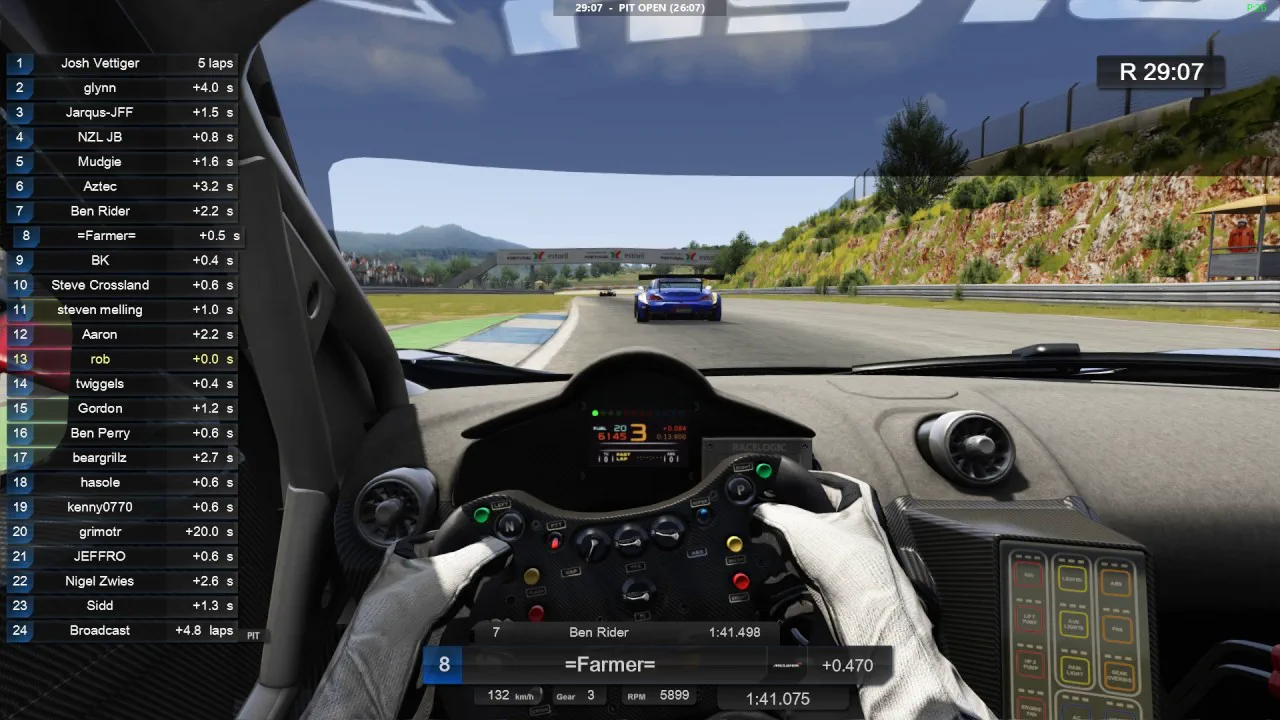
A broadcast PC is an ordinary PC connected to a spectator TV. It runs a small Multitap app that plays your idle video between races and joins races as a spectator, cycling through camera angles. Your plan includes one broadcast PC, and you can add more; see Settings, Broadcast for installing one.
Broadcast PCs mostly run themselves. Each one is on Auto unless you take it over: an Auto PC picks the oldest running group, traffic or league race that no other broadcast PC is watching and stays on it until the race ends. Two Auto PCs never sit on the same race. When nothing local is running, an Auto PC shows a public server you have marked Broadcast when idle in Settings, or else plays the idle video. If a join fails, it tries again a few times and then moves on.
The Broadcast panel

The Broadcast panel sits at the bottom of the Launcher page, below the rigs, with one row per broadcast PC. A row shows a coloured dot, the PC's name with a pencil to rename it, its id (broadcast-1, broadcast-2 and so on, numbered in the order they first connected), what it is doing, and a badge: Auto, Paused or Manual.
| State | Meaning |
|---|---|
| Idle video | Playing your idle loop. |
| Idle, video stopped | Idle with a blank screen. Press Restart video. |
| Joining and Watching | On its way into, or spectating, the race or server named after it, for example Watching Group 3 · Monza. |
| Error | The last join failed, with the reason. |
| Offline | The app is not connected. A PC beyond the number your plan includes also shows as Offline here; Settings marks it as over the limit. |
| Control | What it does |
|---|---|
| Send to… and Join | Point this PC somewhere yourself. The list has two groups: Races, every running group, traffic and league race (a race with no spectator seat left says so), and Server presets, the servers on your Public Servers list in Settings. For one of those you can also pick which car the PC spectates from. Press Join and the badge turns to Manual. When that race ends, the PC goes back to Auto on its own. |
| Leave | Sends the PC back to the idle video and pauses Auto, so it stays there until you resume it. |
| Pause auto / Resume auto | Stops or restarts the automatic choice for this PC only. |
| Restart video | Starts the idle loop again on an idle PC. |
| Pencil | Renames the PC, up to 40 characters. Press Enter to save. |
Under the rows, a strip lists every running race with the PCs watching it, or Unwatched, then your idle-time presets. With nothing running it reads No races running. Idle PCs play the venue video. The panel updates live.