A hotlap challenge is a contest on one car and one track that runs for days or weeks. Drivers set laps on your rigs or from home, everyone lands on the same leaderboard, and the challenge gets its own public page and TV display. Multitap opens the server at the start time, records every valid lap, and closes the board at the end time without anyone pressing a button.
The Challenges page
Open Admin panel › Challenges. Your challenges are grouped by where they are in their life, each group with a count and a short hint:
| Group | What it holds |
|---|---|
| Live | Open now. Laps count. |
| Scheduled | Saved and public. The server opens at the start time. |
| Drafts | Private while you build them. Nothing is public until you schedule one. |
| Ended | Final boards, plus any challenge you cancelled. |
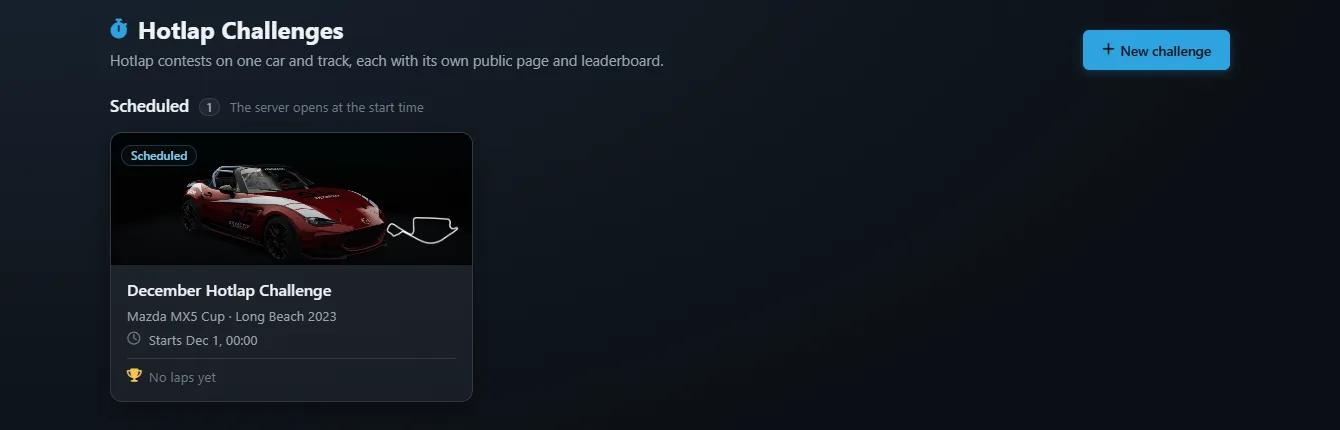
Each card shows the car and the track outline, a status badge, the title, a time line such as Ends in 3d 4h or Starts Dec 1, 00:00, and the current leader with their time. If a live challenge's server is not running, the card says so in amber. Click a card to open it, or press + New challenge to build one.
Building a challenge
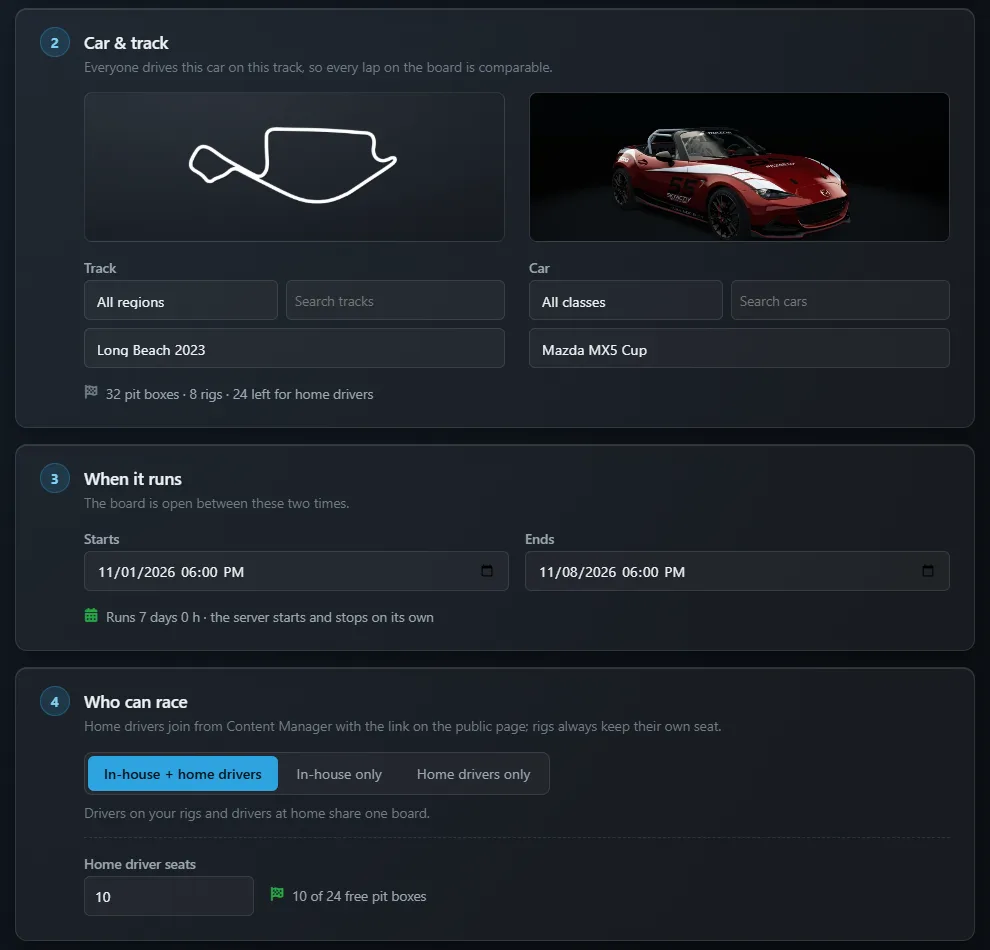
The builder is seven numbered cards. You can press Save draft at any point and come back later. A bar pinned to the bottom of the page sums up what you have chosen so far, for example MX-5 Cup · Monza · 7 days · in-house + 12 home seats.
| Step | What you set |
|---|---|
| 1. The challenge | A Title and a Description. Both appear on the public page, so write the description for drivers: what it is and who it is for. |
| 2. Car & track | One track and one car, so every lap on the board is comparable. Each picker has a region or class filter and a search box, and shows a preview. Under them, a line counts the track's pit boxes, your rigs, and how many boxes are left for home drivers, for example 28 pit boxes · 8 rigs · 20 left for home drivers. |
| 3. When it runs | Starts and Ends. A challenge can run for up to 90 days. The note underneath confirms the length and reminds you that the server starts and stops on its own. |
| 4. Who can race | Pick In-house + home drivers, In-house only or Home drivers only. With home drivers allowed, set Home driver seats (10 by default). See Seats and pit boxes. |
| 5. Track conditions | Weather, Time of day, Air °C, Road hotter than air by °C and Grip %. These are frozen for the whole challenge, so a lap set on day one and a lap set on the last night are driven in the same conditions. |
| 6. Driving rules | The Assists mode everyone drives with: Pro (manual gears, no racing line) or Standard (beginner-friendly assists such as auto gears and the racing line). If your venue has a custom assist set in Settings, it appears here under its own name. Advanced (optional) holds auto clutch, auto shifter, stability control, tyre blankets, and fuel, tyre wear and damage rates. Leave them on Venue default unless you have a reason. |
| 7. Public page extras | Rules and Prizes, shown on the public page. Prizes are yours to hand out; Multitap only displays the text. Download links list up to ten mod cars or tracks a home driver needs to install, each with a label and an address. The Email drivers when this challenge goes live box is ticked by default; see Emails. |
When you are happy, press Save and schedule. The challenge becomes public straight away with a countdown, and its server opens at the start time.
Seats and pit boxes
A challenge runs on its own Assetto Corsa server, and a server has one seat per pit box on the track. Your rigs take their seats first, then the rest are offered to home drivers. The seat note does the sums for you: 10 of 20 free pit boxes when everything fits, a warning when the track is too small for the number you asked for, and a clear message when there are no boxes left for home drivers. Pick a bigger track or switch to In-house only in that case.
Each rig's seat is locked to the Steam account its launcher reports. If a rig has not reported one yet, the challenge page lists it in an amber note, because its seat stays open and a home driver could take it. The rig's Steam ID is kept on Settings › Saved Sims.
Once a challenge is scheduled or live, the car, track, conditions, driving rules and start time are locked so every lap stays comparable. You can still change the title and texts, the number of home seats, and move the end later. Ended and cancelled challenges cannot be edited.
Statuses
A challenge moves through Draft, Scheduled, Live and Ended. Multitap checks every half minute or so, turns a scheduled challenge live at its start time and ends it at its end time. The buttons at the top of a challenge follow its status:
| Button | When | What it does |
|---|---|---|
| Edit | Draft, scheduled or live | Opens the builder. Locked fields stay locked. |
| Schedule | Draft | Makes it public and books the server for the start time. Refused if the end has passed, or if home drivers are allowed and the track has no free pit boxes. |
| Cancel | Draft or scheduled | Withdraws it after a confirmation. A cancelled challenge disappears from the public pages. |
| End now | Live | Stops the server and makes the board final, after a confirmation. |
Multitap sets how many challenge servers your venue can run at once, one unless agreed otherwise. If another challenge is already using it when a start time arrives, the new one stays scheduled and its page reads Waiting for a free challenge server until the first one ends. Challenge servers do not count against your rigs.
Running a challenge
Open a challenge to see it as it runs.
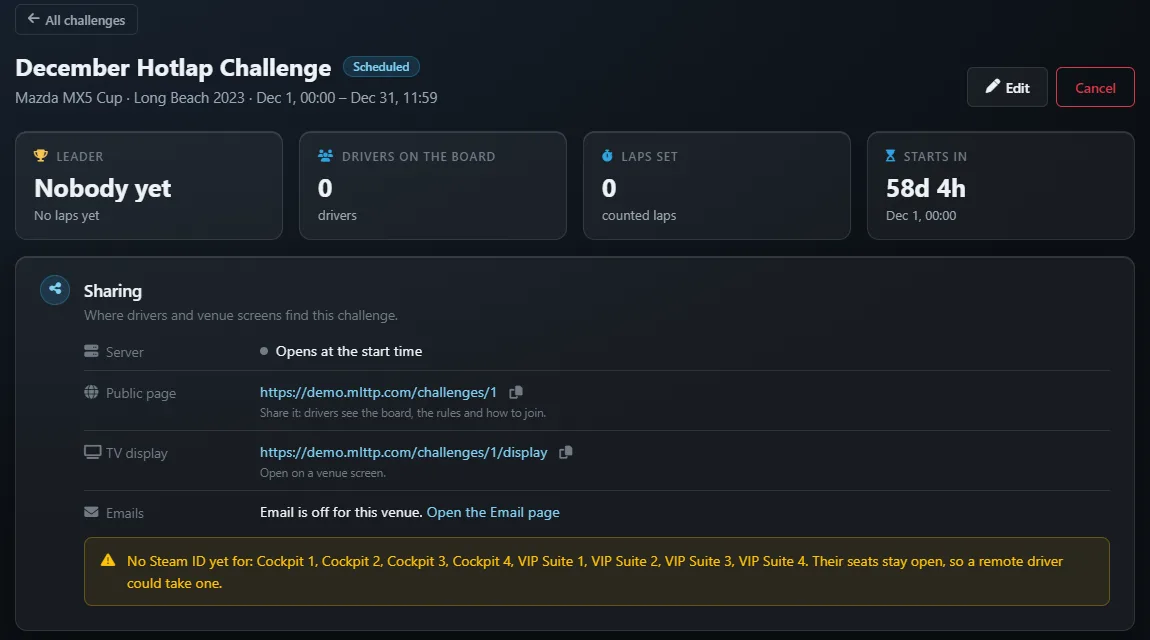
Four tiles sit across the top: Leader, Drivers on the board, Laps set, and a clock that reads Starts in before the start, Time left while it is live, and Ended afterwards.
The Sharing box is where drivers and screens find the challenge:
| Row | What it shows |
|---|---|
| Server | Opens at the start time, Server running, Server restarting… or Waiting to start. If the server fails to start, an alert says why and when the next try is; Multitap retries after 1, 5 and 15 minutes. |
| Join address | While live, the server address with a copy button. Home drivers can also add it in Content Manager by hand. |
| Public page | The page to share. Drivers see the board, the rules and how to join. |
| TV display | A full-screen board for a venue screen. |
| Emails | How many drivers got the announcement, or why none went out (email off for the venue, or off for this challenge), with a link to the Email page. |
Sending rigs in
While a challenge is live, its page has a panel for putting your rigs on the challenge server. Tick the rigs you want and press Send. A rig that already has a session keeps its driver and time. An idle rig needs a driver name, and gets a timer first: Minutes for rigs with no session is 15 by default. If a rig cannot go, the panel says why in plain words, for example that it is in a game and needs ending first, or that it is not connected. Broadcast PCs follow races from the Launcher page instead.
The leaderboard
The board lists each driver's best lap with their gap to the leader and their lap count. A badge marks each driver as In-house or Remote. It refreshes every 15 seconds.
- Only laps set between the start and end count, and a lap with a cut is not valid.
- Each driver's best valid lap ranks them. If two drivers set the same time, the earlier lap wins.
- Strike lap removes one lap, for example after a track-limits complaint. The driver's next best lap takes its place.
- Disqualify removes a driver from this challenge's board after a confirmation.
Laps set on your rigs also land on your normal leaderboards, like any other lap. Laps set from home count for the challenge only and never appear on your venue boards.
Home drivers
A home driver needs Assetto Corsa, Content Manager, and any mod content listed in your download links. On the public page they press Join with Content Manager, which opens Content Manager on the right server, or they add the address shown under it by hand. Nobody types a Steam ID: Multitap recognises each home driver by the Steam account Content Manager connects with, and puts their best lap on the board under their name.
The challenge server has no password and does not appear in the public Assetto Corsa lobby. Anyone with the link can join while it is live.
Public pages
Scheduled, live and ended challenges are public at your venue's address. Drafts and cancelled challenges are not.
| Address | What it is |
|---|---|
/challenges/ | Every public challenge with its car, track, countdown and leader. Ended challenges stay listed for 90 days. |
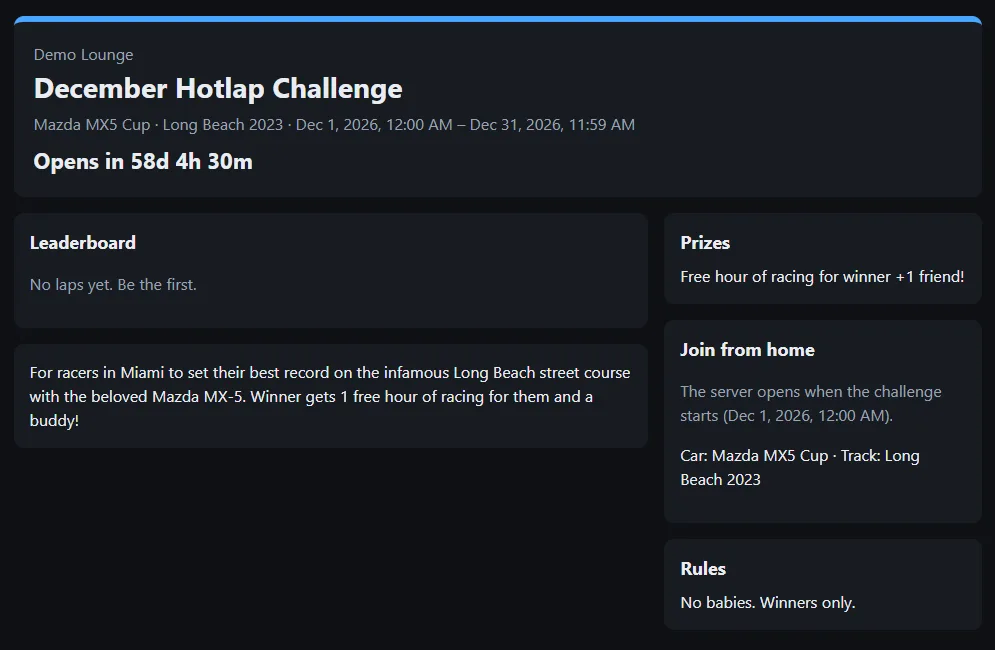
/challenges/<id> | The challenge page: a countdown (Opens in, Ends in or Finished), the leaderboard, your description, prizes and rules, and the Join from home card with the car, track and download links. It refreshes every 10 seconds. |
/challenges/<id>/display | The TV display: the top 15 in large type for a screen in the room. |
Shared on social media or in a chat, a challenge link unfurls into a card with the title, the car and track, and the current top three.
Emails and Discord
When your venue's driver emails are switched on, challenges send three emails of their own. Each has a card on the Email page's Notifications tab, is on by default, and can be previewed and edited like the others. See the Email chapter.
| Who gets it, and when | |
|---|---|
| New Challenges | When a challenge goes live: registered drivers who agreed to emails and raced at your venue in the last six months, plus people who signed up on your challenge pages. Untick Email drivers when this challenge goes live in the builder to skip it for one challenge. |
| Challenge Spot Lost | When someone pushes a driver out of first place or out of the top three. At most one a day per challenge, with a button to go and win it back. |
| Challenge Results | When the challenge ends: each racer's place, best lap and gap, with the final standings. If you wrote prizes, the top three are told you will be in touch. Sign-ups who did not race get the top 10. |
With driver emails on and your postal address filled in on the Email page, the public challenge page also shows a Get emails about challenges card. A visitor gives a first name and an email and ticks an unticked consent box. Multitap sends a confirmation email, and nothing else goes to that address until they open the link and press Confirm. Sign-ups are rate limited so the form cannot be used to flood someone's inbox.
If your Discord is connected, the bot posts to your venue channel when a challenge goes live, when there is a new leader (at most once every 10 minutes per challenge), and the final top 10 when it ends.
Put the TV display on a screen near the door, print the public page's address on the counter, and post the link in your Discord the day it opens. A prize as small as a free hour keeps people coming back to take the top spot.
A challenge is one car on one track. The same person driving on a rig and from home shows as two rows. Broadcast PCs cannot spectate a challenge; use the TV display instead. A strike cannot be undone from the panel. Challenges are not yet part of the venue API.