Two things make a venue's data useful: knowing who each driver is, and trusting the laps. The Drivers page is where in-game names become real people with an email address, so leaderboards, emails and Discord posts can address them properly. The Laps page is where you fix the data before it sticks: invalidate a cut lap, link a name to the right driver, delete a test run.
Drivers
The Drivers page has four sections: Registered Drivers, Import Customers, Name Matching and Organizations.
Registered Drivers
The table lists everyone with a driver record in the columns Name, Email, Organizations (as grey chips), Laps, Last seen and Registered. Click the Name, Laps, Last seen or Registered heading to sort by it. A search box filters by name, email or social handle as you type. Once you have an organization, an All organizations list beside the search box narrows the table to one of them; archived ones are marked (archived). Three more lists and a tick box narrow it further: Any email status (Subscribed, Unsubscribed or No consent), Any activity (raced in the last 7, 30 or 90 days, or never raced), Registered any time (this week, this month or before this month) and Birthday this month. Each filter you set shows as a chip, with Clear all to start again. The list shows 25, 50 or 100 per page, newest registrations first.
Each row starts with a checkbox, and the box in the heading ticks every driver the current search and filter show. Ticking drivers is how you add several to an organization at once.

Beside an email you may see a chip. Subscribed means they gave consent and can receive marketing email. Unsubscribed means they opted out, or you suppressed them. No consent means they were added without agreeing to email, so no marketing email goes to them; you can suppress them here, but consent can only be given by the driver. A subscribed driver who turned off some kinds of email on their unsubscribe page has a short line after the chip saying which, for example No time beaten or weekly digest emails.
| Control | What it does |
|---|---|
| Quick Add | Opens a form with first name, last name, email, birthdate, social handle and an Organizations list where you can pick more than one. Names are tidied automatically (title case, and the right capitals in names like O'Brien or McLaren). Any in-game name that contains both first and last name is linked to the new record straight away. |
| CSV and Excel | Download the whole driver list, with an Organizations column at the end. They ignore the organization filter and always include everyone. |
| Add to organization | Appears in a bar above the table once you tick drivers, next to a count such as 3 selected and a list of your organizations. Pick one and press it to add every ticked driver. The bar only shows when you have at least one organization that isn't archived. |
| Row click | Expands the driver's stats: total and valid laps, member since, games played, favourite car and track, their five best laps, and recent visits. |
| Edit | Edits the row in place, organizations included. Changing a name updates the display name on every linked in-game name in every game. |
| Unsubscribe / Resubscribe | Suppresses or restores marketing email for that driver. Only shown when they have an email address. |
| Delete | After a confirmation, removes the driver and all their name links. Their laps remain under the raw in-game name. |
The registration page
Rather than typing customers in, put a tablet at the desk showing your-venue.mlttp.com/registration/. It carries your venue name and accent colour and asks for first name, last name, email, an optional birthdate and social handle, and a checkbox agreeing to receive email from the venue. Submitting creates the driver record with consent, links any matching in-game names, and shows a thank-you for five seconds before clearing for the next person. Birthdates feed the birthday email; the handle is there for your own use.
A sign-up from this page links an in-game name only when it is exactly the driver's first and last name, ignoring capitals and punctuation. Quick Add, imports and Auto-Match All keep the looser check described under Name Matching.
If you use organizations, the form can also ask which one the driver belongs to. An Organization list appears after the social handle when the Registration field setting in the Organizations section is Optional or Required and at least one organization has On registration ticked. Under Optional the list starts on None. Under Required it starts on Choose your organization, and the form won't register anyone until they pick one.
For a single group, share that organization's own link instead, your-venue.mlttp.com/registration?org=…, which you copy from the Organizations table. The form opens with the list locked to that organization, even if it isn't ticked for the registration page. The link is ignored when the Registration field is Off or the organization is archived.
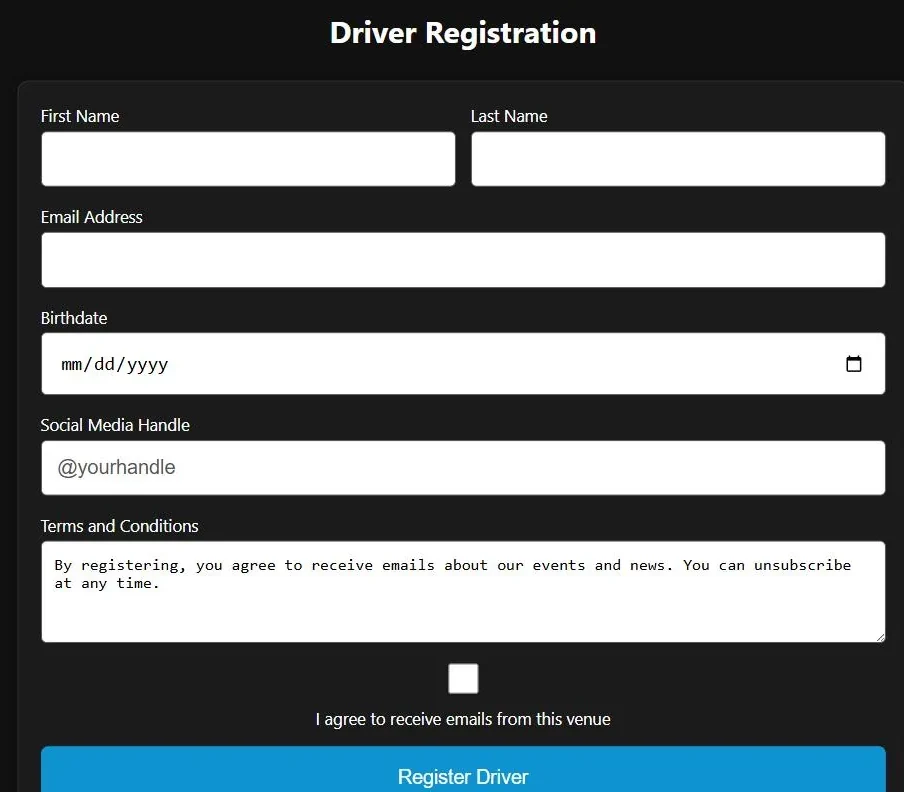
Import Customers
The import wizard brings in a list from your point of sale or a spreadsheet and shows you what it will do before it does it.
- Get the list in.
Either Pull from ROLLER with a date range (or Pull all customers), using the ROLLER credentials from Settings; or paste a list into the text box, or choose a CSV file, and press Continue. Column headings are recognised in most common spellings: first name, last name, email, phone, birthdate, social, a subscribed flag and organization (also read as organisation, org, company or team). A row needs an email or a full name.
Put several organizations in one cell separated by a semicolon. Each joins an existing organization with the same name, ignoring capitals, or creates a new one. Organizations created this way are not listed on the registration page until you tick On registration, and a driver whose organization can't be joined is still imported.
- Review matches.
Every row is classified as New, Update (email) where the email already exists, Update (fuzzy) where the name closely matches an existing driver, or Skip (dup) where nothing would change. New rows and confident matches are pre-ticked. New only and High-confidence adjust the selection in one click; the checkboxes let you fine-tune.
- Commit.
Commit selected inserts new drivers and fills in blanks on matched ones without overwriting anything you already had. Consent is set only when the import says the customer opted in. The result line reads, for example, Inserted 42, updated 7, skipped 3. Afterwards, press Auto-Match All in Name Matching to link their in-game names.
ROLLER nightly sync
If you use ROLLER for tickets, Settings › ROLLER Integration takes a client ID and secret and a checkbox for Enable nightly auto-sync. Once a day Multitap pulls customers changed since the last sync, adds the new ones and fills blanks on exact email matches. Anything ambiguous is left for you to review in the wizard. A status line shows the last sync time and how many records it applied.
Name Matching
Laps arrive under whatever name is set in the game. Name Matching links those names to driver records. On the left, Unregistered drivers lists every in-game name that has driven and is not yet linked, with its game, its lap count, a driver picker and a Link button per row. On the right, Current Mappings lists existing links with an unlink button; links made automatically carry an auto badge.
Auto-Match All links every unmatched name that contains a registered driver's first and last name. The same check runs on every new name the first time it is seen, so a customer who registers at the desk and then types their full name into the rig is linked without anyone doing anything.
Once linked, the driver appears everywhere as F. Lastname, and their laps count toward their stats and emails.
Organizations

An organization is a group of drivers: a company, a school, a club or a party. Group them and you can give that group its own leaderboard, its own sign-up link and its own report, which is what a corporate event or a school league needs. A driver can belong to several organizations.
Type a name in the New organization box at the top of the section and press Add. Names can be up to 80 characters, and two organizations can't share a name, whatever the capitals. The table lists each one with its Members count, an On registration checkbox and three action buttons. Click a members count to see who is in it, each name with a cross that removes them from the organization. To add members, tick them in Registered Drivers and use Add to organization, or pick organizations when you add or edit a driver.
| Control | What it does |
|---|---|
| Registration field | Off, Optional or Required, for the Organization list on the registration page. Optional by default. It saves as soon as you change it. |
| On registration | Lists that organization on the registration page. Leave it off for a private group and hand out its link instead. |
| Rename | Edits the name in place. The organization's link stays the same, so links you have already shared keep working. |
| Copy registration link | Copies your-venue.mlttp.com/registration?org=…. Anyone who signs up through it joins that organization. |
| Archive / Unarchive | Archives the organization, marked with an Archived badge. It leaves the registration page and its link stops applying, but it keeps its members, and saved boards, exports and the API can still filter by it. |
Organizations can't be deleted; archive the ones you no longer use. Once you have one, the Laps page, saved leaderboards and the Reports page each gain an organization filter.
Laps
The Laps page lists every individual lap recorded at the venue, with a tab per game. Each row shows when the lap was driven, the driver, car, track, lap time and the three sector times, plus a status: Invalid (with the number of cuts, when there were any) and Unlinked when the in-game name isn't tied to a registered driver yet. When the in-game name differs from the name shown, it appears in small grey text under it. On a narrow screen the sector columns hide to make room.

Finding laps
The toolbar filters as you go, with no button to press. Type in the search box to match a driver or an in-game name. Pick a track (narrowed by region, with its own search box), a car (with a search box) or a class from the lists. Once you have organizations, another list, All organizations, keeps only laps driven by one organization's members; laps under an in-game name that isn't linked to a driver never match it. Any time opens a small menu with Today, Last 7 days, Last 30 days and Custom range. All, Valid and Invalid narrow the list by status.
Every filter you set shows as a chip under the toolbar, such as Organization: Acme Corp. Click a chip's cross to drop that one filter, or Clear all to start again. Click the When heading to switch between newest and oldest first, and the Lap heading to sort fastest or slowest first. The list below the table sets how many laps a page holds, from 25 to 200; the browser remembers your choice.
The ··· menu holds Export CSV and Export Excel. Both download every lap that matches the current filters, in the current order.
One lap in detail
Click a row, or the driver's name, and a panel opens on the right with everything the venue knows about that lap: the time and sectors, whether it counted, top speed, tyre, the exact date and time, the session type, the car and track with their folder names, the car's class, and the in-game name.
| Control | What it does |
|---|---|
| Mark valid / Mark invalid | Flips the lap's validity. Invalid laps drop to the bottom of every board, faded and struck through, and never count as a record or personal best. |
| Delete lap | Removes the lap after a confirmation. |
| Link | For an in-game name that isn't linked yet: search your drivers by name or email, pick one, and link. It is the same link Name Matching makes, so every lap under that name counts for that driver from then on. |
| Open Drivers page | For a name that is already linked. Unlinking happens on the Drivers page. |
A mistyped name is fixed by linking it, not by renaming it: the next lap under the same typo lands on the same driver, and their history stays in one piece.
If the venue sends its laps to VenueLaps, the panel also reminds you that VenueLaps keeps its own copy of a lap it has already received. Marking that lap invalid or deleting it here does not change the copy on VenueLaps.
Many laps at once
Tick rows, or the box in the heading for the whole page, and a bar appears with Mark valid, Mark invalid, Delete and Clear. When more laps match than the page shows, Select all 120 matching (with your own count) takes every one of them, up to 500; above that, narrow the filters first. Deleting always asks first and says how many laps will go. The selection clears whenever the list reloads, so an action never touches laps you can no longer see.
The in-game app decides whether a lap is valid as the driver crosses the line: it must be clean by the game's own rules, with no cuts, and not start or end in the pit lane. The Laps page shows that verdict and lets you overrule it either way.
Importing past laps
The Import page, under Results in the sidebar, brings laps from other servers and apps onto your boards: years of history from an old server, or a board you kept in another app. It is on both Multitap Cloud and Cloud Lite. Imported laps show on your own boards only and are never sent to VenueLaps, and importing the same laps twice never adds them twice.

Pick a source from the four tabs.
| Tab | What it reads |
|---|---|
| AC or Emperor results files | Results files from an Assetto Corsa server: the results folder of the server (files such as 2024_5_12_20_30_RACE.json), or the files Assetto Server Manager or Emperor Servers let you download. Up to 200 files at a time and 20 MB each. Press Check files. |
| ACC results files | Results files from an Assetto Corsa Competizione server's results folder (such as 240704_221500_R.json), with the same limits. A car we don't recognise by its ACC number is skipped, and the preview says which. |
| Emperor server | The address of your Emperor server. Turn on Public Access in Emperor's server settings first, then press Check server. Emperor allows 5 requests every 20 seconds, so a server with many results takes a few minutes to read; the page counts the results as they arrive. |
| CSV file | A lap list exported from another app, such as a SimHub lap board. Choose the file, then tell the importer which column holds what: Driver, Track, Car and Lap time are required, and Layout, Sectors, Date and Valid are optional. Pick the file's game under Game. Common header names are matched for you. Lap times can read 1:32.345, 92.345 or whole milliseconds. A file with no date column imports with today's date, and dates read in your venue's timezone. Press Check file. |
Nothing is saved yet at this point. The preview lists how many laps were found and how many are new, the games, tracks and cars (marking any that are new to your catalogue), and the rows that were skipped, grouped by reason with examples. Press Import to add the new laps, or Cancel to drop the preview. When it finishes, a line says how many laps were imported, how many were already there, and how many driver names were linked to registered drivers.
A venue linked to VenueLaps also gets a Your VenueLaps laps box with Bring in my VenueLaps laps. It reads back the laps your venue has already sent to VenueLaps and adds them to your own boards under each driver's VenueLaps name. That name can differ in capitals or spelling from the one your rig sent, most often for a driver who has raced at other venues. Like every import, they stay on your own boards and are never sent back.