Running no hesi style venue sessions comes down to three jobs: get your traffic maps and AI cars ready ahead of time, launch one shared road for the rigs that are playing, and keep an eye on it from the desk while people drive. None of it is hard, but the first two jobs have to be done before a group is standing at the counter asking for it. This guide walks through the setup in the order you'd actually do it in Multitap, so your first traffic night starts with a full road instead of an error message.
We covered the scoring rules and the traffic leaderboard in our post on traffic dodging nights, so we'll skip those here and stay on the back-of-house side.
What no hesi style venue sessions need before opening day
If you've only seen this style of driving on public Assetto Corsa servers, the venue version works a little differently. In Multitap, several drivers in your venue join the same locally hosted traffic server and weave through AI traffic side by side, in the spirit of No Hesi. Because the server is yours, it uses only what your venue supplies, and there are three things it needs.
Maps with an AI line. For a map to have traffic, the server needs that map's AI line, which is a few small files from the map's ai folder that tell the AI cars where the lanes are. Your rigs send these by themselves. Leave a rig switched on with the Multitap Collector running and it sends the AI line of every map it has that the server is missing. The Traffic maps panel on the Cars & Tracks page shows where each map stands. Ready means the server has the line and tells you how many lanes it found. Waiting means no rig has sent it yet, and a rig that has the map sends it within about ten minutes. If the panel says the line wasn't found on your rigs, you can send the map by hand by dropping in the map's own folder (not the ai folder inside it). Only the small AI files are sent, so even a huge map takes seconds.
Maps that look like traffic maps are marked suggested and switched on for you. Race circuits are folded away on their own, because almost every race track ships an AI racing line for opponents but isn't a road map with traffic.
AI cars you've ticked. The Traffic card in Settings lists the car models your rigs have, and you tick the ones that should fill the road. Set buses and trucks as Truck / bus and they're kept to about 15% of the road, which stops a highway map from turning into a wall of trucks. This card has its own Save traffic settings button, so don't rely on the main save bar. If no cars are ticked, traffic launches are refused until you tick some.
Custom Shaders Patch on every rig. Every rig in a traffic session needs Custom Shaders Patch 0.2.8 or later, and a rig on an older version can't join. Check this on the rig you always forget about.
While you're on Cars & Tracks, each traffic map also holds its own profile. You can give a map its own speed and switch on two-way traffic, which only has an effect on maps whose AI line has lanes going the other way. A tight city loop and a six-lane highway shouldn't share one setting, and this is where you separate them.
Launching a shared traffic session from the desk
Open the Groups page, press Start New Race, and switch the drawer to the Traffic tab. Tick the rigs that are taking part. Every ticked rig needs to be logged in, meaning a session is already running on it, or Multitap refuses the launch and tells you which sim to log in first.
Then it's a handful of choices:
- Track. The list shows the maps you switched Traffic on for. A map whose AI line hasn't arrived is greyed out and can't be picked.
- Cars. One car for everyone with random liveries, or Driver Chooses, where each driver picks on their own rig and a banner counts how many are ready.
- Traffic Density. Light, Normal, Busy or Rush Hour. Busier settings put more AI cars on the road with shorter gaps between them.
- Traffic Speed. Cruise (60 km/h), City (80 km/h) or Highway (110 km/h), or leave it on Map default to use the profile you set for that map.
- Session Length. Anywhere from 5 to 999 minutes, 30 by default. The server loops, so it never kicks anyone out mid-run.
- Mode and conditions. Pro or Standard for the assist profile, plus the same time-of-day and weather presets you use for races.
The conditions are worth a second look, because a night highway is a big part of the appeal. When the start time falls in the dark, headlights are forced on, and the rigs need Custom Shaders Patch to show night, which they already have if they can join traffic at all.
Press Launch Traffic Session. The progress card tells you the traffic server is spinning up and the AI cars are warming up, and when it's ready each rig gets its launch order. Nobody touches a keyboard at the rig.
What staff see while the road is open
A running session shows up under Active Races as a tile named Traffic 1, Traffic 2 and so on, with the track, the rigs and the join address. It's simpler than a race tile on purpose, since there are no qualifying or race sessions to step through.
Two behaviors make this an easy format to run on a busy floor. A rig that leaves doesn't end the session for anyone else, so the road stays open for the rigs still on it and the server stops once the last rig has left. And when a group's time is up, End session on the tile stops the server and closes the game on every rig in it.
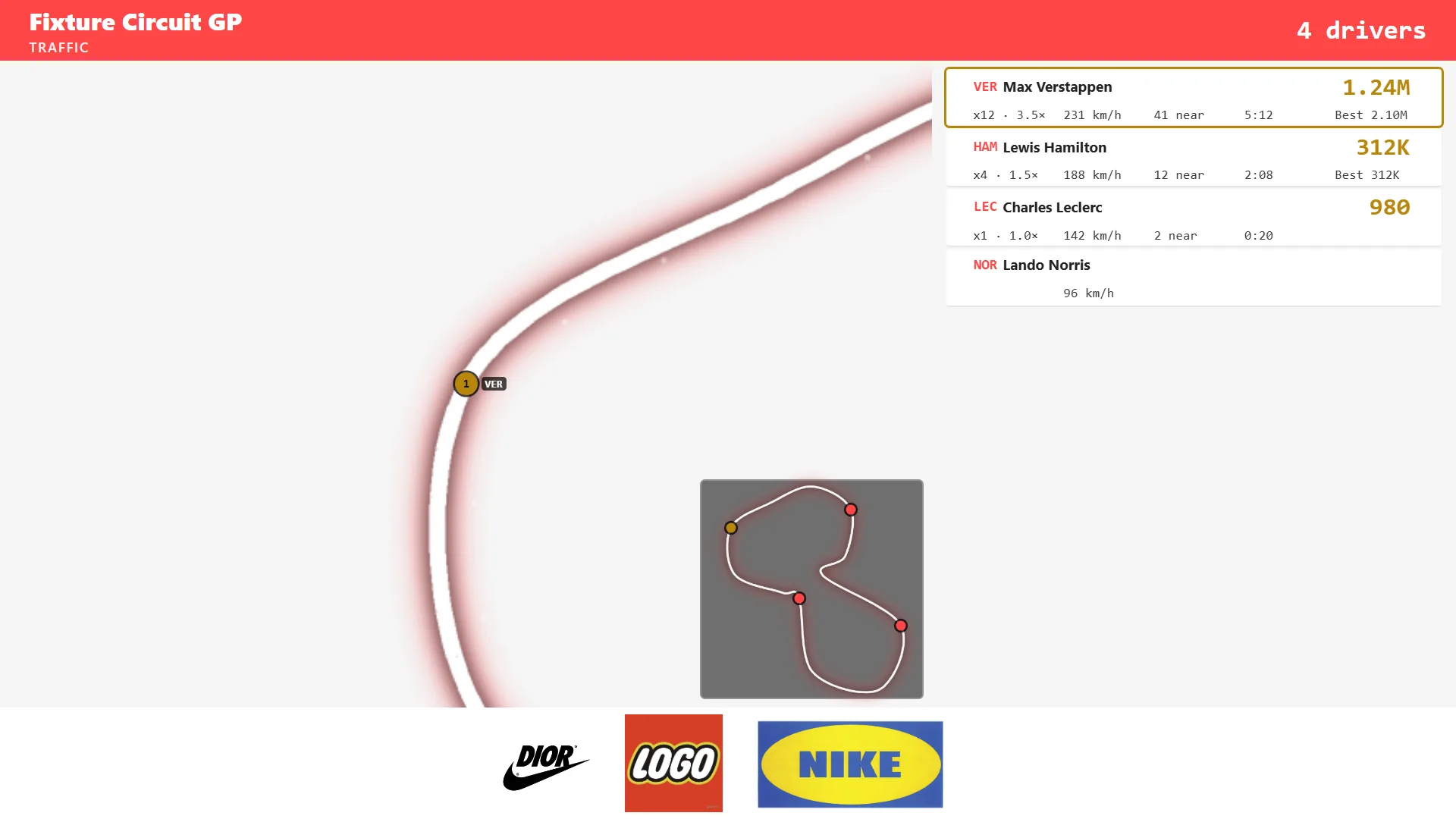
If you run Multitap Cloud's live leaderboard on a TV, a traffic session appears there too, as the traffic map with the drivers on it and their runs. People waiting for a rig can watch the group that's out there right now, which does a lot of your selling for you.
One thing to tell your staff early: traffic picked from the launcher on a single rig is single-player practice, and those scores aren't recorded. For scores that count, launch it as a group session from the Groups page, even if the group is small.
Once the format is running well, you can hand some of the work to your regulars. With customer group sessions turned on in Settings, a logged-in driver can host a traffic session from their rig with the wheel and friends join from theirs. It's off by default, staff see every session on the Groups page, and a staff action always comes first.
A quick check before the doors open
- Open the Traffic maps panel and confirm tonight's map says Ready.
- Confirm the Traffic card in Settings has cars ticked and saved.
- Make sure every rig is on Custom Shaders Patch 0.2.8 or later.
- Launch a short test session on two rigs and drive it yourself for a few minutes.
- Put the traffic leaderboard or the live leaderboard on a TV near the waiting area.
It's a small amount of prep for a format that people who'd never sign up for a race night will happily try.
Traffic sessions are part of the full Multitap Cloud platform, which is $35 per sim, per month, alongside the group races, leaderboards and everything else on the features page. If you're comparing Assetto Corsa venue software and want to see the Traffic tab for yourself, the live demo on the Multitap homepage lets you click through the admin panel with simulated rigs. Or book a demo call and we'll walk through setting up your first traffic session with you.
See Multitap in Action
Explore lap-triggered marketing, VenueLaps and the Discord engine in the self-guided public demo.
Try the Demo →